Losing access to your Google Account or Apple ID feels like getting locked out of your own house, while the lights are still on inside. Your email, photos, saved passwords, receipts, and work files can be stuck behind a login you can’t complete.
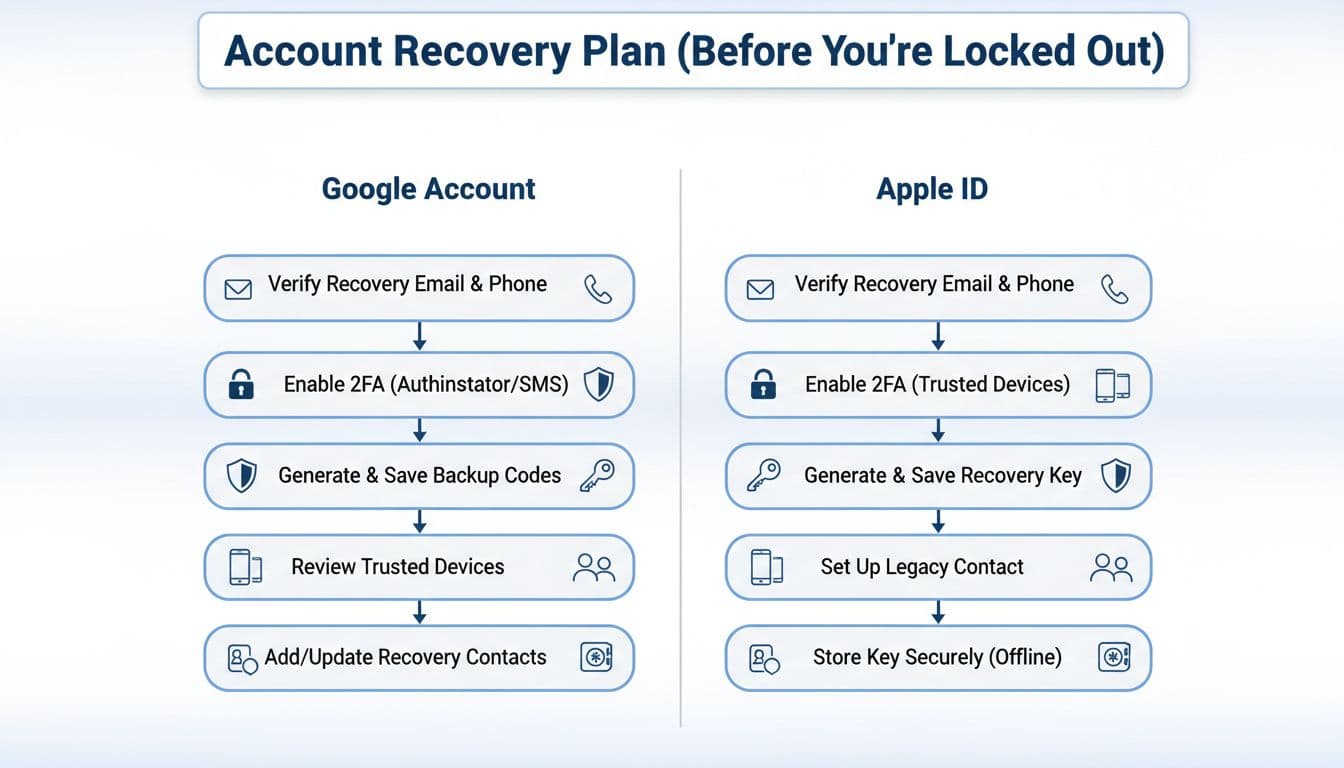
A good account recovery plan isn’t something you build after the problem hits. It’s a short set of steps you set up now, then test, so you can prove it’s really you later. The goal is simple: keep your accounts recoverable even if your phone is lost, your number changes, or someone tries to hijack your sign-in.
Below is a prevention-first plan that works in January 2026, with notes where labels can vary by device or region.
Step 1: Make recovery info boring, accurate, and up to date
Start with recovery options, because they’re the “spare keys” your account uses to recognize you. Most lockouts happen after a life change (new phone, new number, travel) and the old recovery details are still sitting there.
Google Account: recovery email, phone, and (optional) a trusted contact
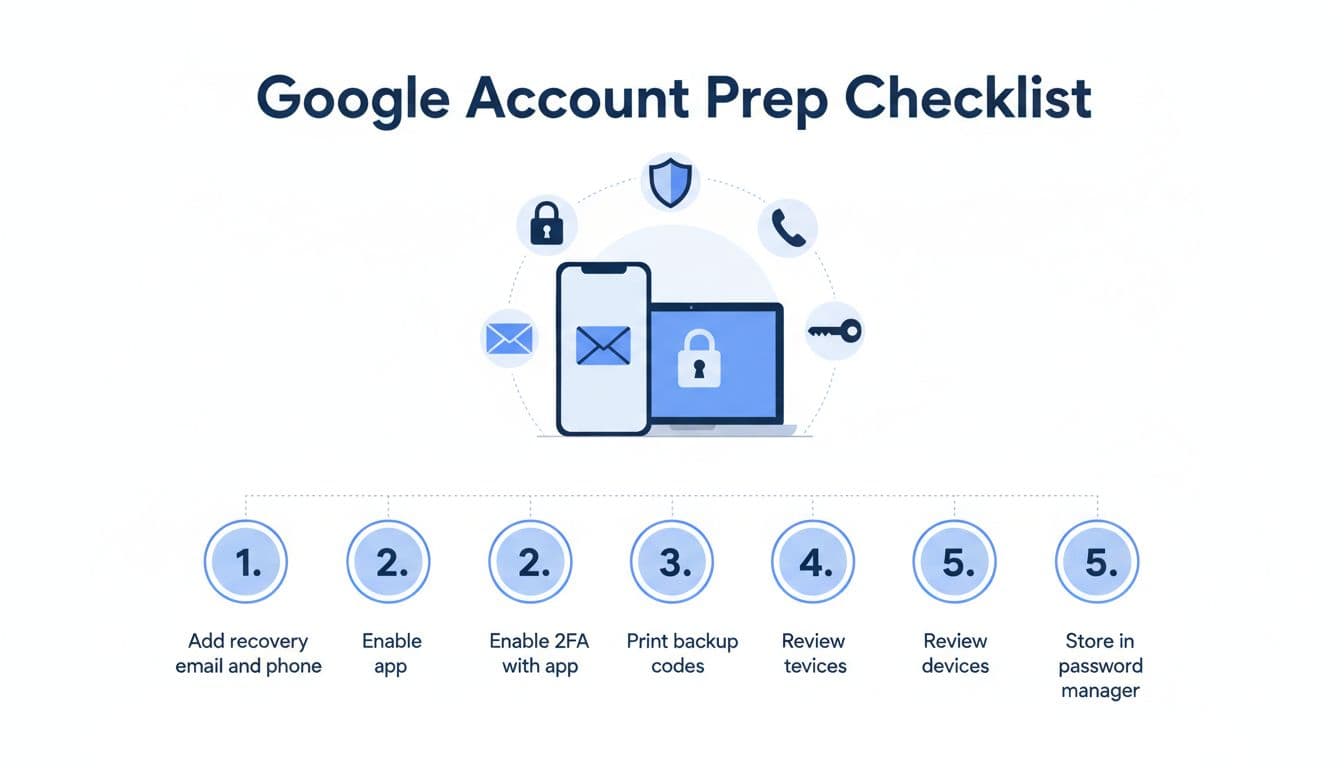
In a browser, go to your Google Account settings (often reached from your profile icon, then “Manage your Google Account”). Look for Security, then recovery options like recovery email and recovery phone.
“Screenshot in words” guide (labels may vary):
- Open Google Account settings on web.
- Tap or click Security.
- Find Ways we can verify it’s you (or similar wording).
- Add a recovery email you can always access (not the same Gmail).
- Add a recovery phone number you control long-term.
As of January 2026, Google can take time to apply changes. Recovery edits can take up to 7 days to fully take effect, and Google may alert the old recovery methods for a period after changes. That’s helpful when you made the change, and a red flag if you didn’t.
When you’re setting this up, use Google’s own guidance on answering recovery prompts well, because it explains what helps your chances when you’re locked out, like using a familiar device and giving as much info as you can: tips to complete Google account recovery steps.
Apple ID (Apple Account): trusted phone numbers matter more than people think
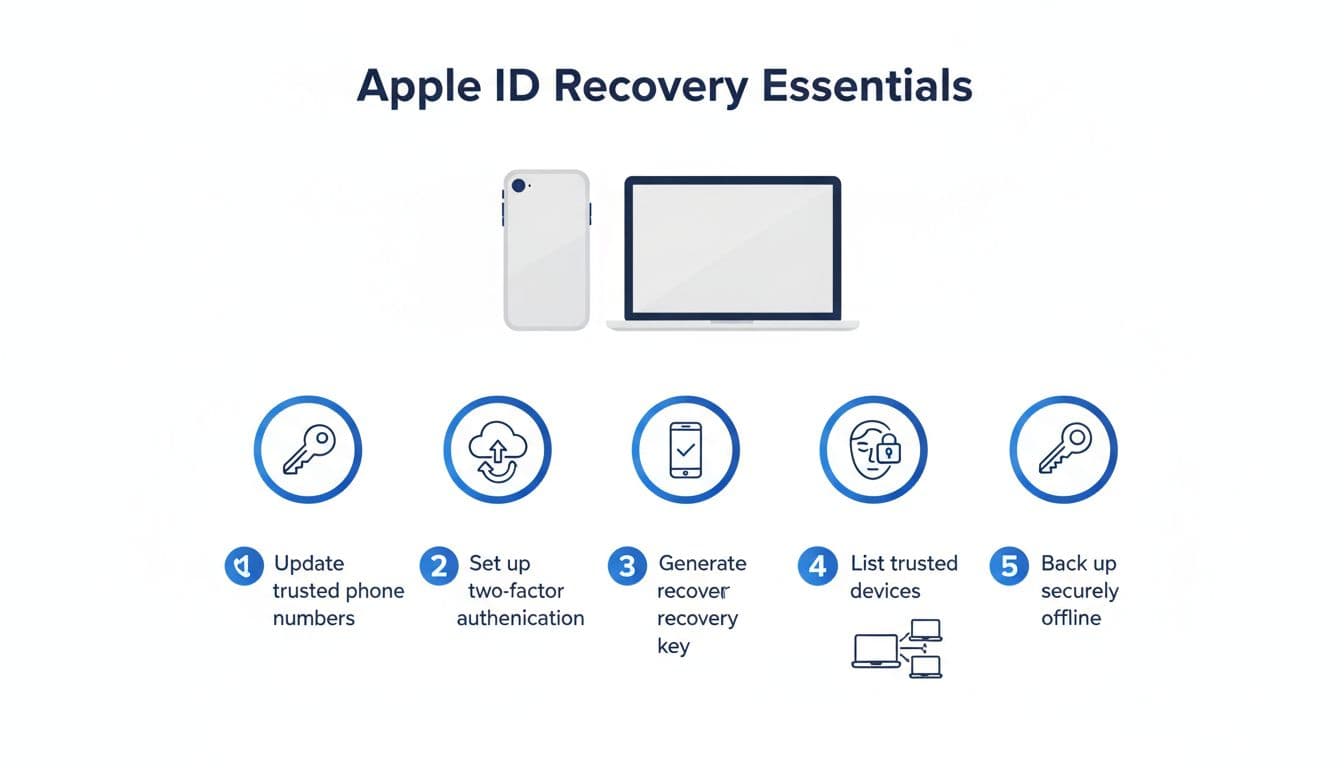
On iPhone or iPad, open Settings, tap your name at the top, then go to Password & Security. On Mac, open System Settings, then your Apple Account, then Password & Security (names can differ slightly).
Do this now:
- Confirm the trusted phone number(s) are current.
- Add a second trusted number if you can (a number you’ll still have if you switch carriers).
- Make sure you can receive verification codes while traveling (or plan for no service).
Quick checklist (do it today):
- Recovery email(s) are reachable and secured.
- Phone numbers are current and will still be yours in 6 months.
- You wrote down what you changed and when (helps during recovery).
Step 2: Strengthen sign-in, then create backups you can actually use
Recovery details help you get back in. Strong sign-in controls help you avoid needing recovery in the first place. Think of this as upgrading the lock and hiding a spare key, not under the doormat.
Prefer phishing-resistant sign-in methods (and know the weak spots)
For Google, enable 2-step verification and use stronger methods when possible:
- An authenticator app, Google prompts, or a security key tends to resist SIM-swap and many phishing attacks better than SMS codes.
- If you must use SMS, treat your phone number like a target. SIM-swap attacks are real, and criminals often start with your carrier account.
For Apple, two-factor authentication is the standard for most users. Apple often relies on trusted devices and trusted phone numbers to deliver codes and approve sign-ins.
Also set a strong device lock:
- Use a strong phone passcode (not 123456, not your birthday).
- Keep Face ID or Touch ID on, but don’t rely on biometrics alone.
- Keep your operating systems updated on trusted devices, since outdated devices can break sign-in flows and security checks.
Create your “get back in” kit: backup codes, recovery keys, and a safe place to store them
Google offers backup options like printable backup codes. Apple offers recovery paths that can include account recovery waiting periods, and in some setups a recovery key option may be available. Features vary by region and account type, so check what your account offers, then store the result safely.
Safe storage rules that work for small businesses and families:
- Put backup codes and recovery details in a reputable password manager.
- Keep an offline copy too (printed and stored in a locked place).
- Don’t screenshot backup codes and leave them in your camera roll.
- Don’t store recovery codes in email drafts or notes that sync everywhere.
Mini checklist (set it, then verify it):
- Two-factor is enabled on both accounts.
- Backup codes or recovery key info is saved in two places (password manager plus offline).
- You can still sign in if your phone number changes.
Step 3: Rehearse recovery, avoid scams, and know the official path
A plan you never test is like a fire escape you’ve never opened. Do a quick “recovery rehearsal” once a year, and any time you change phones or carriers.
Do a safe rehearsal (without locking yourself out)
Pick a calm time at home, on your usual Wi-Fi:
- Sign in to your Google Account on a second device or a private window, then confirm you can complete verification.
- On Apple, confirm at least two trusted devices are signed in (for example, iPhone and Mac). If you only have one trusted device and you lose it, recovery gets harder.
Also review trusted devices:
- Remove old phones you no longer own.
- Check for devices signed in from places you don’t recognize.
- Turn on account alerts where available, and read them.
Watch for phishing and fake support traps
Account lockouts often come with a second punch: scammers pretending to “help.” The safest rule is simple: never trust inbound support.
Red flags:
- “Support” texts that ask for your code.
- Calls claiming your account is “compromised” and requesting remote access.
- Websites that look right but are slightly misspelled.
If you need to recover an Apple Account password, use Apple’s official reset flow: Recover your Apple Account. If you can’t reset normally, Apple may place you into an account recovery process with a waiting period, explained here: how Apple account recovery works.
If you do get locked out, stick to official recovery pages only
For Google, use the official recovery steps (and nothing else): recover your Google Account or Gmail. Then stop and breathe. Rushing leads to mistakes, and repeated failed attempts can slow you down.
Conclusion: Treat account access like a spare house key
A solid account recovery plan is boring on purpose. You update recovery info, turn on strong two-factor, store backup options safely, and practice once in a while. Do those things now, and the next lost phone or surprise login prompt won’t turn into a weekend-long disaster. Set a calendar reminder for your next check, then ask one last thing: if you lost your phone today, could you still prove you’re you?

