Copilot can feel like a helpful coworker who reads fast and remembers everything. That’s the problem. If your tenant has messy permissions, Copilot data exposure audit work becomes urgent, because Copilot will surface whatever the user can already access.
In 2026, the winning pattern is simple: tighten permissions, label data, and add guardrails for prompts and sharing. This guide focuses on what to check, where to click, and what to fix first.
Executive summary for risk owners (what changes when Copilot turns on)
Copilot doesn’t “break in” to data. It amplifies existing access across SharePoint, OneDrive, Teams, Exchange, and connected apps. If “Everyone except external users” can read a site, Copilot can summarize it for anyone with that access, at speed.
The fastest way to reduce risk is to treat Copilot readiness like a permissions clean-up project, with measurable outcomes. Use Microsoft’s guidance on configuring data security for Microsoft 365 Copilot as your baseline and then audit for drift.
Here’s a quick risk map to align security, compliance, and business owners:
| Risk signal you can measure | What it can cause | Typical owner | First remediation move |
|---|---|---|---|
| Overshared SharePoint sites | Internal data spreads to broad groups | SharePoint admin, site owners | Reduce “Everyone” access, use targeted groups |
| Anonymous or “anyone” links | External leakage with no identity trail | SharePoint admin, data owners | Disable/restrict anonymous links, add expirations |
| Broad Teams membership | Private chats and files become widely searchable | Teams admin, team owners | Tighten team creation and membership governance |
| Weak prompt controls | Users paste secrets into prompts | Compliance, security | Add Purview DLP controls for Copilot interactions |
If a user can read it, Copilot can reference it. Fix the read paths first, then fine-tune the AI controls.
What “overexposure” looks like in a Copilot-enabled tenant
Overexposure is rarely one big mistake. It’s usually a hundred small ones that feel convenient. Copilot turns those small exposures into quick answers, summaries, and cross-app connections.
Common examples that show up during a Copilot data exposure audit:
- Overshared SharePoint sites: A finance or HR site with “Members: Everyone except external users” (or nested groups that effectively equal the entire company).
- Broad Teams membership: Private teams created for a project, then quietly expanded until “almost everyone” is a member. The connected SharePoint site inherits the same looseness.
- Anonymous sharing links: “Anyone with the link” files that never expire, especially in OneDrive. These links often live in old emails and chat threads.
- Legacy sharing habits: External sharing allowed tenant-wide, with permissive defaults (for example, default link type set to anonymous or editable).
- Excessive mailbox access: Shared mailboxes with too many full-access delegates, plus old distribution lists that still receive sensitive threads.
To anchor your model, start with Microsoft’s description of how access and auditing work in Microsoft 365 Copilot data protection architecture. It reinforces the core rule: Copilot honors Microsoft 365 permissions, including SharePoint/OneDrive access controls and many compliance policies.
Concrete audit checks that catch the biggest exposures first
You don’t need perfect visibility on day one. You need high-signal checks that point to real fixes.
1) SharePoint and OneDrive: hunt for “wide read” plus risky links
Start in SharePoint admin center > Policies > Sharing and confirm your external sharing posture matches your risk tolerance. Then sample high-value sites (HR, Finance, Legal) and validate who can read.
In parallel, use Microsoft Purview portal > Audit > Search to find link creation and sharing activity, then filter by:
- Workload (SharePoint, OneDrive)
- Activity related to sharing links
- Site URL or file path patterns for sensitive areas
If you stream Microsoft 365 auditing into Microsoft Sentinel, KQL-style queries can help you rank hotspots. For example:
OfficeActivity | where OfficeWorkload in ("SharePoint","OneDrive") | where Operation has "Link" or Operation has "Sharing" | summarize count() by SiteUrl | top 20 by count_ descOfficeActivity | where OfficeWorkload in ("SharePoint","OneDrive") | where Operation has "Anonymous" or Operation has "Anyone" | summarize count() by UserId | top 20 by count_ desc
Keep expectations clear with stakeholders: these queries highlight patterns, then admins validate settings and permissions on the flagged sites.
2) Teams: check membership sprawl and “shadow owners”
Review Teams admin center > Teams > Manage teams and spot teams with high membership counts, unclear ownership, or stale activity. Next, pick the top few and inspect:
- Owners (are there at least two, and are they current?)
- Guests (do they still need access?)
- Connected SharePoint site permissions (do they match the team’s purpose?)
3) Entra ID: reduce accidental access paths
In Microsoft Entra admin center, prioritize:
- Conditional Access coverage for Copilot entry points (MFA, compliant device, session controls where used)
- Guest access governance and external collaboration settings
- Access reviews for high-impact groups that grant broad SharePoint and Teams reach
Even a strong SharePoint model fails if group membership is uncontrolled.
Tenant-level settings to review (and what to change when you find issues)

Treat tenant settings like guardrails. They won’t fix overshared content by themselves, but they stop new exposure from spreading.
Start with Microsoft 365 admin center and consider enabling a hardened baseline where it fits your org. Microsoft documents what it changes in Baseline security mode settings. Review the SharePoint/OneDrive and identity-related toggles carefully, because they can affect collaboration.
Then lock down the two most common data escape hatches:
- Sharing defaults (SharePoint admin center > Policies > Sharing): tighten default link type, reduce anonymous sharing, require expiration on external links where possible, and align “Anyone” link settings with your risk model.
- Prompt data controls (Microsoft Purview portal > Data loss prevention > Policies): apply DLP to Copilot interactions so users can’t paste sensitive data into prompts. Microsoft tracks the capability and scope in Purview DLP for Copilot interactions.
One more practical fix: apply and enforce sensitivity labeling for high-impact locations. Even when Copilot behaves correctly, teams often copy AI-generated summaries into new docs. Without consistent labeling, those outputs can drift into “unlabeled, broadly shared” territory.
Guardrails reduce new risk. Permission cleanup reduces existing risk. You need both for a stable Copilot rollout.
Your 30/60/90-day Copilot data exposure audit plan
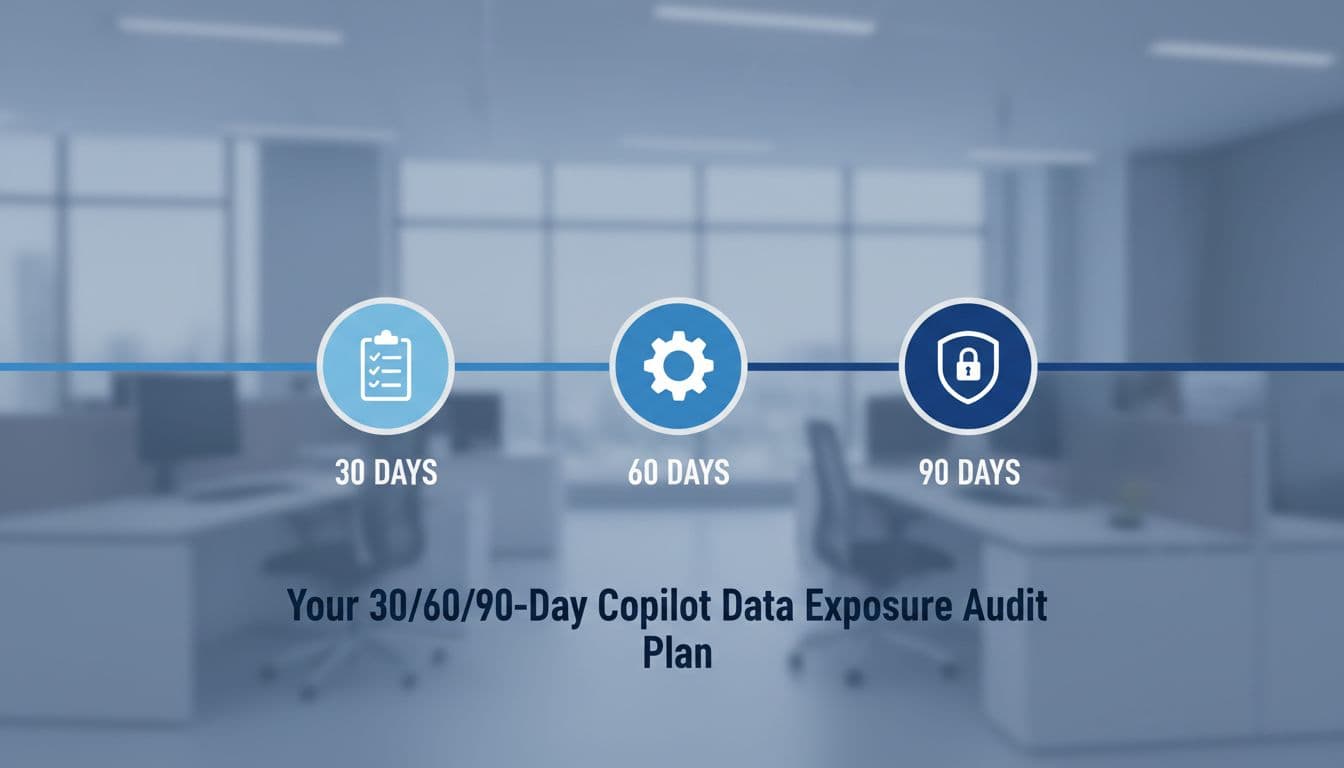
A plan keeps the work from turning into endless tuning. Aim for visible reductions in broad access and anonymous sharing.
First 30 days (stabilize): inventory high-value sites and teams, confirm external sharing posture, and enable audit visibility in Purview. Put temporary limits on anonymous links if they’re widespread.
By 60 days (reduce exposure): remediate the top overshared sites, shrink overly broad groups, and require ownership hygiene for high-membership teams. Add Purview DLP policies for Copilot prompts, starting with regulated data types and “do not paste” scenarios.
By 90 days (govern and sustain): implement recurring access reviews in Entra for high-impact groups, standardize site provisioning, and add ongoing reporting for new anonymous links or sudden permission expansions. At that point, expand Copilot to more users with fewer surprises.
Conclusion
Copilot doesn’t create permission problems, it makes them easier to feel. A solid Copilot data exposure audit focuses on what users can read today, then puts tenant guardrails in place so tomorrow looks better. Start with overshared sites and anonymous links, because they produce the fastest risk reduction. After that, prompt controls and access reviews help you keep it that way.

