One loose guest link can undo a year of careful governance. That’s why a sharepoint external sharing audit can’t stop at the tenant settings page.
If you run Microsoft 365 for a real business, you need proof, not assumptions. The checks below focus on what matters in 2026: tenant caps, site drift, file-level exposure, Entra ID guests, OneDrive spillover, and audit evidence.
Set the tenant-level guardrails first
Start at the tenant because it defines the loosest sharing SharePoint and OneDrive can allow. As of March 2026, that cap still controls every site. If your tenant only allows existing guests, no site can open up to anonymous links.
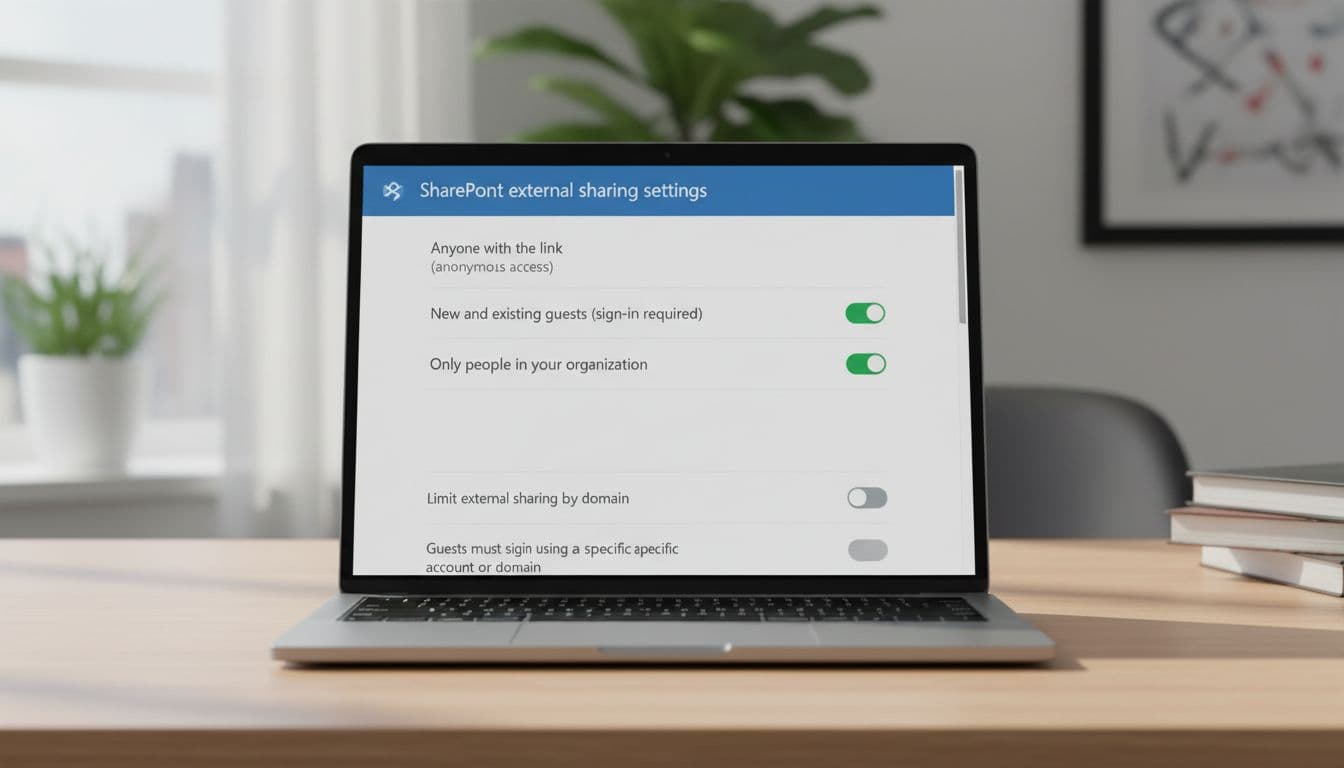
Microsoft’s guide to external or guest sharing in OneDrive, SharePoint, and Lists is a useful check when you need to confirm what each sharing mode permits.
Use this quick map to keep the control layers straight:
| Control layer | What to verify | Recommended baseline |
|---|---|---|
| Tenant-level | Max sharing level, domain rules, guest expiration, allowed sharers | Existing guests or New and existing guests |
| Site-level | Exceptions, sensitive site lockdown, owner accountability | Tighter than tenant for HR, finance, legal |
| File/folder-level | Link type, edit rights, expiration, re-sharing | Specific people, view-only unless edit is required |
The pattern is simple: broad rules at the top, tighter rules closer to the data.
For the tenant review, check these items first:
- SharePoint and OneDrive settings: Review both. OneDrive often ends up looser, and that creates quiet risk.
- Allowed sharing level: Avoid Anyone unless you have a strong business case and short link expiration.
- Domain restrictions: Block personal or untrusted domains here, then match the same intent in Entra B2B.
- External sharing groups: Let only approved users or groups share outside the company.
- Guest expiration: Set a time limit so stale access doesn’t live forever.
Most restrictive wins. Tenant settings cap the site, and the site caps the file or folder.
Don’t trust defaults. OneDrive can be more permissive than classic or communication sites, while group-connected sites often follow Microsoft 365 group guest behavior.
Audit site-level settings before chasing individual links
Site-level review is where policy drift shows up. Old project sites, partner workspaces, and Teams-connected sites often keep broader sharing long after the work ends.

Microsoft’s page on individual site sharing controls is still the best reference when you need to validate what a site owner can, and cannot, inherit from the tenant.
Focus your site audit on risk, not volume. A small list of sensitive sites matters more than a long list of inactive ones. Start with finance, HR, legal, executive, M&A, and client-delivery sites. Then move to high-traffic Teams sites and any site with many guests.
These checks usually expose the biggest problems:
- Site sharing mode: Flag sites set to Anyone or New and existing guests without a clear business reason.
- Owner accountability: Find orphaned sites, inactive groups, or owners who left the company.
- Default link type: Push sites toward Specific people. “People in your organization” is fine internally, but it doesn’t help external review.
- Site-specific domain rules: Use them for partner portals and supplier spaces.
- Guest-heavy sites: Review any site where guest count is high but activity is low.
Then go one layer deeper. File and folder links decide who gets the actual key. A site can look clean while a document library still contains old anonymous links, edit links, or broad folder shares. For scaled reporting, this guide to SharePoint Online external sharing reports is a practical reference for admin center, PowerShell, and Graph-based checks.
If you want a simple rule, use site settings to limit options, then use file and folder links to narrow access even more.
Match sharing to identity, compliance, and audit evidence
A sharepoint external sharing audit isn’t complete until you tie links to identities and events. SharePoint sharing doesn’t live alone. It depends on Entra ID guest objects, OneDrive behavior, and your audit trail in Purview.
Start with the guest account itself. If Entra B2B collaboration rules block a domain, SharePoint can’t bypass that. If Conditional Access or MFA applies to guests, that should line up with your external sharing model. A clean SharePoint setting means little if Entra guest sprawl is out of control.
Next, check the evidence. Microsoft’s guidance on sharing auditing in the audit log helps map who shared what, with whom, and when. Use Purview audit searches to spot repeat sharers, unusual volume, and sharing on sensitive sites. Also review setting changes, not only sharing events. This walkthrough on auditing SharePoint sharing setting changes shows the types of admin actions worth watching.
Warning signs that deserve action:
- Guests with no sponsor: If no owner can explain the access, remove or review it.
- Dormant guests: Old external accounts on inactive sites are easy cleanup wins.
- Open OneDrive links: Personal storage often becomes the side door into the tenant.
- Edit links on sensitive content: View-only should be the default for outside users.
- Share churn: Repeated share and unshare events can point to broken process or risky behavior.
Remediate in the same order you audited. Tighten the tenant cap if it’s too loose. Lock down high-risk sites. Revoke bad file links. Remove stale guests in Entra ID. Then re-run the audit logs to confirm the fix. Also discard stale reports that still mention pre-modern legacy links, because Microsoft retired those old external links in mid-2025.
Turn the checklist into a monthly control
The strongest external sharing program is boring in the best way. It uses a firm tenant cap, tighter site rules, and short-lived file links backed by real audit evidence.
Pick your ten most externally shared sites this week and review owners, guest count, and default link type. The fastest win is usually accountability: fewer open links, fewer stale guests, and one owner per site who can explain every exception.

