That “your password was changed” email hits like a slammed door. Sometimes it’s you, half-asleep, tapping “reset” twice. Other times, it’s a real takeover, and the attacker is already inside, setting up ways to get back in.
This guide is a service-agnostic account takeover recovery playbook. You’ll confirm what happened, kick out active sessions (not just change the password), and lock down the recovery paths so it doesn’t repeat.
Confirm it’s real, then figure out what the attacker touched
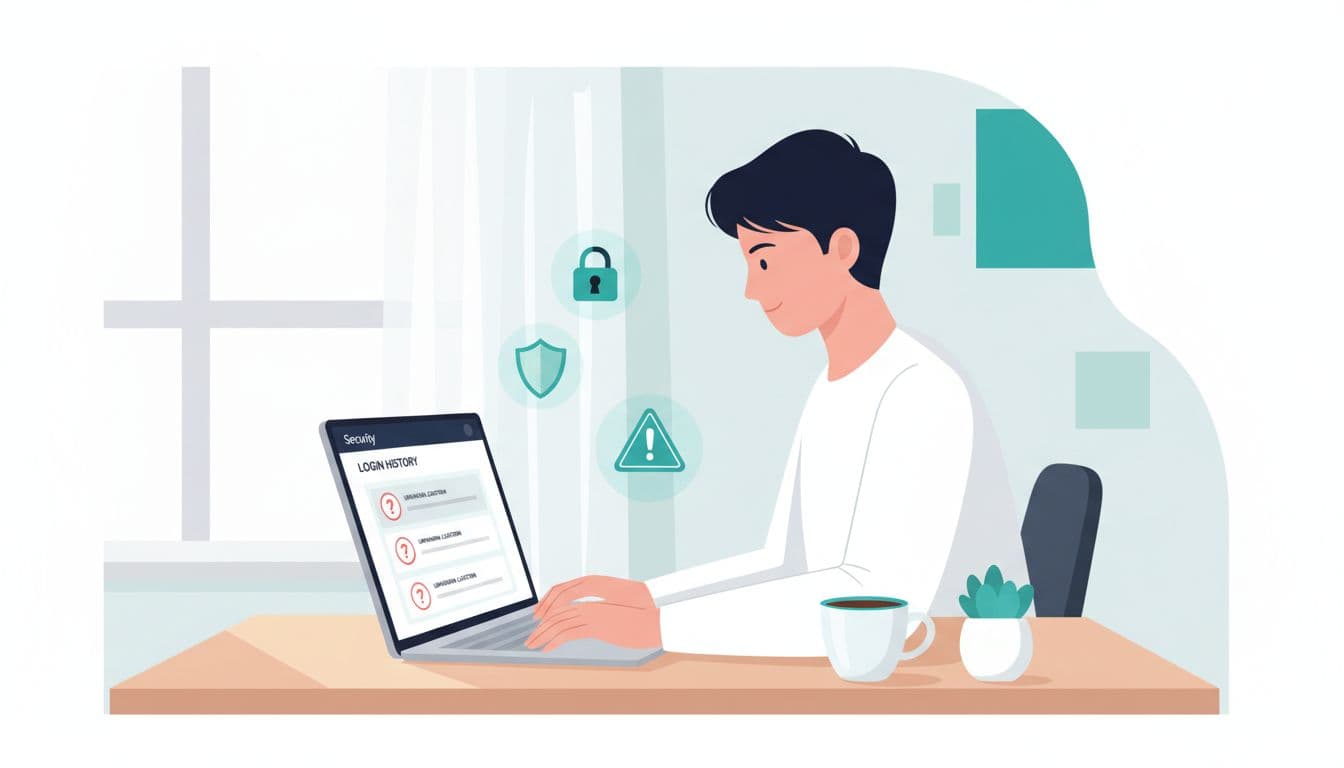
Start by separating “changed” from “compromised.” A lot depends on whether you can still sign in.
If you can still sign in: treat it like an active incident anyway. Attackers often change the password and keep a session alive, like someone copying your house key before you change the locks.
If you can’t sign in: begin recovery immediately, but don’t rush on a possibly infected device. Use a known-clean device if you can (a different computer, a fresh browser profile, or a trusted phone).
Quick confirmation checks that matter across most services:
- Security alert email or push notification: Look for time, device, and location. Be cautious with links in the email. Type the site address yourself.
- Login history / recent activity: Check for unfamiliar devices, locations, or app names.
- Account profile changes: Recovery email, recovery phone, and forwarding addresses are high-value targets.
- Mailbox rules and forwarding (for email accounts): Attackers love hidden auto-forwarding and “mark as read” rules.
- New devices or passkeys: Unknown “trusted devices” or added passkeys can be a backdoor.
A simple triage table helps you decide your next move:
| What you see | What it usually means | Your first move |
|---|---|---|
| Password changed notice, but no strange logins | You (or a glitch) | Change password again, turn on MFA |
| Strange logins, new rules/forwarding | Active compromise | Secure email first, revoke sessions |
| 2FA codes arriving you didn’t request | Someone attempting takeover | Change password, check recovery options |
| You lost cell service suddenly | Possible SIM swap | Call carrier, switch off SMS-based 2FA |
For Google accounts, Google’s own steps are worth following closely, starting with Google’s guidance to secure a compromised account. For broader context on how takeovers happen and why they stick, see Security.org’s account takeover prevention guide.
Regain control fast, kick out sessions, then rebuild trust
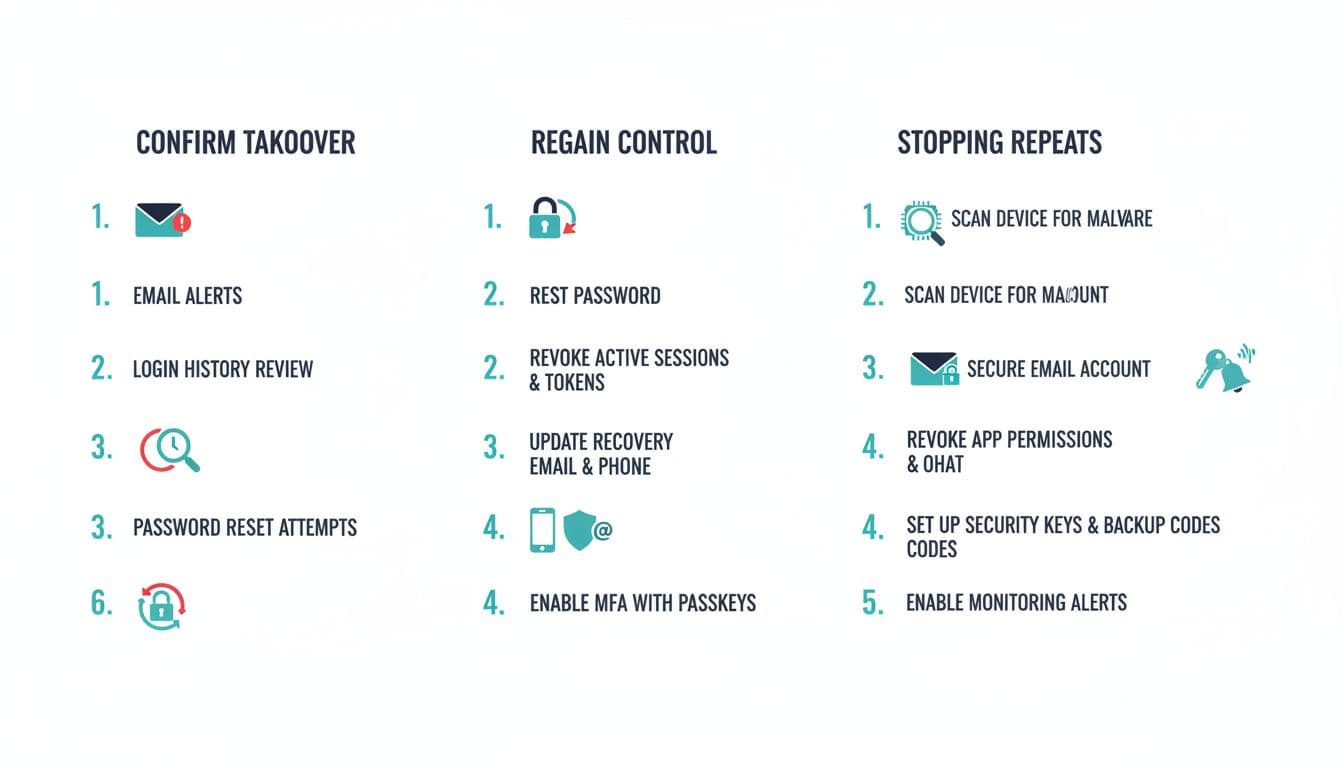
The biggest mistake is only changing the password. If the attacker has an active session, refresh token, or trusted device, they can walk right back in.
Step 1: Secure the email account first (if it’s your recovery channel)
If your email inbox can reset your other accounts, it’s the master key. Secure it before you touch anything else.
- Change the email password to a long, unique one (a password manager helps).
- Enable the strongest MFA you can (more on this below).
- Remove unknown recovery email/phone entries.
- Delete suspicious forwarding addresses and mailbox rules.
- Check “sent” mail for messages you didn’t send.
If you can’t access your email: pause other recoveries and use the provider’s recovery flow first, otherwise you’ll keep getting locked out again.
Step 2: Reset the password from a clean place
- Reset from a trusted device and network if possible.
- Use a new, unique password, not a variation of the old one.
- If your password manager was in the compromised account, change its master password and recovery options as soon as you can.
Step 3: Sign out everywhere, revoke sessions, and remove unknown devices
Look for “Sign out of all devices,” “Log out of all sessions,” or “Revoke refresh tokens.” Then:
- Remove any unfamiliar “trusted devices.”
- Review recent logins again after signing out everywhere.
Examples by ecosystem (names vary, the idea is consistent):
- Google: review security activity and devices, then sign out of unknown sessions.
- Apple ID: check devices list, remove anything you don’t own, update trusted numbers.
- Microsoft: review sign-in activity, end sessions, and update security info.
- Meta (Facebook/Instagram): check “Where you’re logged in,” log out of unknown devices, and update email/phone.
Step 4: Upgrade MFA using the 2026 best-practice order
When you’re rebuilding access, don’t settle for the easiest option if you can avoid it:
- Passkeys or hardware security keys (strongest)
- Authenticator app (good)
- SMS codes (weakest, last resort)
Also grab backup codes and store them offline (printed or in a secure vault). Treat them like spare keys.
Stop repeat takeovers: fix the root cause, not just the symptom
Once you’re back in, assume the attacker learned how to get in. Your job is to remove that path.
Check for the usual entry points
If you reused the password anywhere: change those accounts too. Credential stuffing is still common, and attackers try the same password on email, shopping, banking, and social accounts.
If you clicked a “reset” link or shared a code: assume phishing. Change passwords again and review recovery options. Teach your team (or household) one rule: never share MFA codes with anyone, including “support.”
If a device might be infected: run a malware scan and update the OS and browser. If the device is used for work, involve IT. For small businesses, that might mean forcing sign-out, rotating passwords, and checking endpoint security.
Revoke third-party app access (OAuth) and reset API tokens
This step is easy to miss because it doesn’t always care about your password. A malicious app can keep access via granted permissions.
Do a permissions audit on key accounts:
- Remove apps you don’t recognize.
- Remove apps you no longer use.
- Watch for apps with broad scopes (mail access, account management, offline access).
For Microsoft environments, admins can learn what to look for in Microsoft’s overview of managing OAuth apps. If you want a practical explanation of why OAuth grants can survive password changes, this write-up on revoking risky OAuth grants in Google Workspace and Microsoft 365 gives a clear mental model.
Also rotate any long-lived secrets:
- API tokens for email marketing tools, CRMs, helpdesk systems, code repos, and automation tools
- App passwords (legacy mail clients)
- Integration webhooks and bot tokens
If you don’t know where tokens exist: search your admin consoles for “API,” “tokens,” “integrations,” and “connected apps.”
Know the signs of a SIM swap (and respond fast)
A SIM swap turns SMS-based MFA into a liability. Red flags include sudden “No Service,” calls going to voicemail, or texts not arriving, followed by account reset attempts.
If this happens:
- Call your carrier from another phone and ask for the fraud department.
- Ask to freeze transfers and add a port-out PIN.
- Move important accounts off SMS to passkeys or an authenticator app.
For a quick list of warning signs and steps, see Lifehacker’s SIM-swap explanation.
Printable Account Takeover Recovery Checklist
Use this as a one-page runbook for account takeover recovery.
Confirm and contain
- Note the time you noticed it, save alerts, and screenshot login history.
- If you can’t sign in, start recovery on a clean device.
- If email is the recovery channel, secure email first.
Regain control
- Reset password to a unique, long one.
- Sign out of all sessions, revoke tokens, remove unknown devices.
- Fix recovery options (email, phone, trusted contacts).
- Enable MFA (passkeys/security keys first, then authenticator, SMS last).
- Save backup codes offline.
Stop the repeat
- Remove suspicious inbox rules/forwarding.
- Revoke third-party app access (OAuth) you don’t trust.
- Rotate API tokens, app passwords, integration secrets.
- Scan and update devices, browsers, and extensions.
- Turn on sign-in alerts where available.
Do not do this
- Don’t pay “account recovery” scammers or remote “support” DMs.
- Don’t reuse old passwords or “just add a number.”
- Don’t keep SMS MFA on high-value accounts if you can avoid it.
- Don’t ignore forwarding rules and connected apps.
When the dust settles, keep one habit: review security settings once a month. The goal isn’t perfection, it’s making the next takeover attempt fail quickly, loudly, and for good with account takeover recovery steps you can repeat.