Backup codes are the spare keys to your accounts. They’re also the easiest thing to misplace, forget, or store in a way that hands an attacker the exact shortcut they need.
A quick backup codes audit helps you answer three questions fast: Do I have working codes, where are they, and should I replace them? Ten minutes now can prevent a long, painful lockout later, especially after a phone upgrade, a device wipe, or a travel mishap.
The 10-minute backup codes audit checklist (with time estimates)
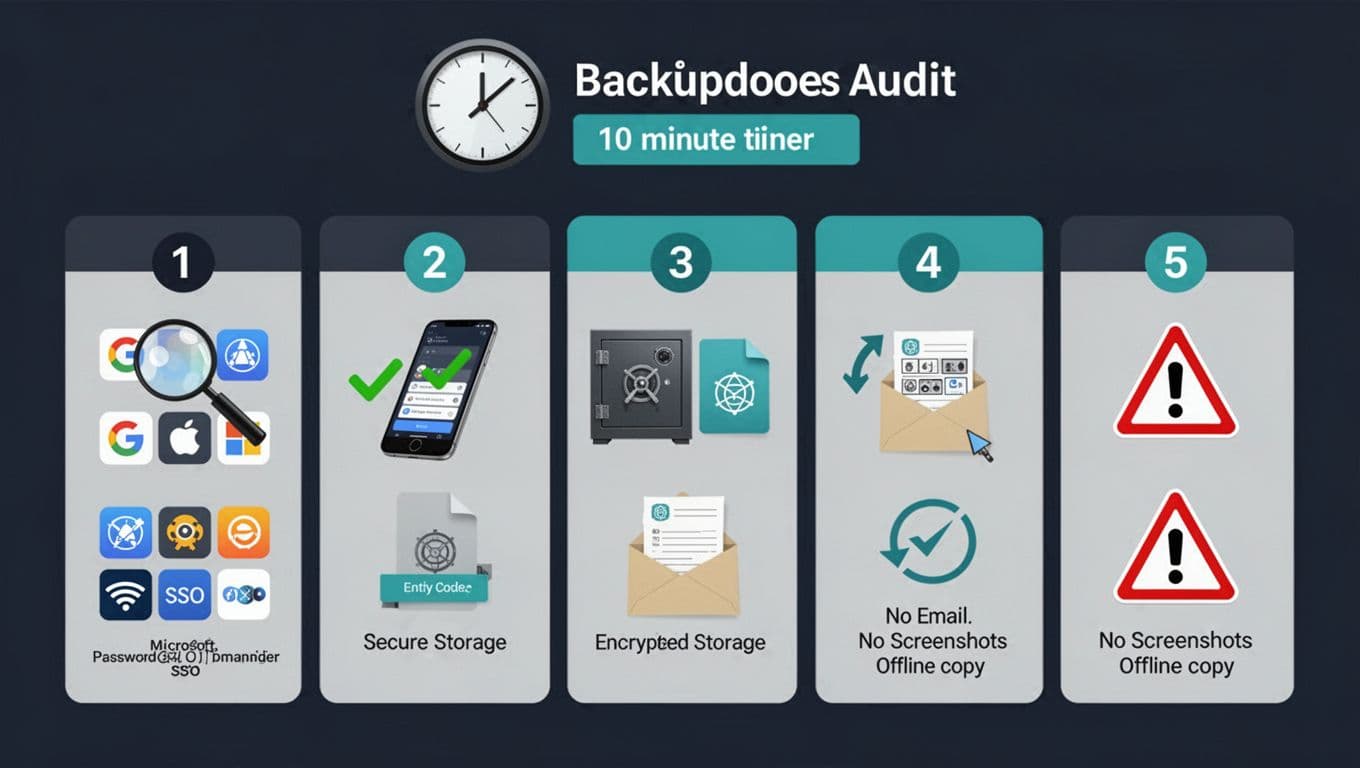
- Start a “top accounts” sweep (2 minutes)
Open a short list of accounts that would hurt to lose: email, Apple Account or Google Account, Microsoft account, password manager, social accounts, banking (if it offers codes), and any work sign-in you use daily.
You’re not fixing everything today, you’re locating recovery paths and noting gaps. - Find backup codes or recovery alternatives (3 minutes)
In each account’s security settings, look for “two-step verification,” “two-factor authentication,” or “recovery.” The labels vary, but “backup codes,” “recovery codes,” and “one-time codes” are common.
For Google accounts, the official help page on signing in with Google backup codes shows what these codes are used for and how they work.
Apple doesn’t always use “backup codes” in the same way, so also check whether you’ve set a recovery key or other recovery options. Apple explains the tradeoffs in Apple’s recovery key guidance. - Verify what you found (2 minutes)
Don’t type a backup code into a live sign-in screen just to test it, you could burn a one-time code or lock yourself out if you’re rushed. Instead, confirm:
You can see a list of codes (or a clear “generate” option), you know whether they’re one-time, and you can tell if they were recently created.
If you rely on Microsoft Authenticator for work or personal sign-ins, make sure you understand its backup and restore path. Microsoft documents this in backing up account credentials in Microsoft Authenticator. - Store safely in two places (2 minutes)
Think “house key,” not “sticky note on the door.” Use one primary storage method and one fallback that doesn’t depend on the same device. (Examples below.)
Warning: Don’t take screenshots of backup codes. Screenshots often sync to cloud photo libraries and shared devices.
Warning: Don’t email codes to yourself, and don’t drop them into plain notes apps. - Replace old codes and document it (1 minute)
If codes are old, exposed, or stored unsafely, regenerate new codes and revoke the old set (many services invalidate prior codes when you generate new ones). Then update your record with the new location and date.
Quick decision tree: “Do you have codes?” and what to do next
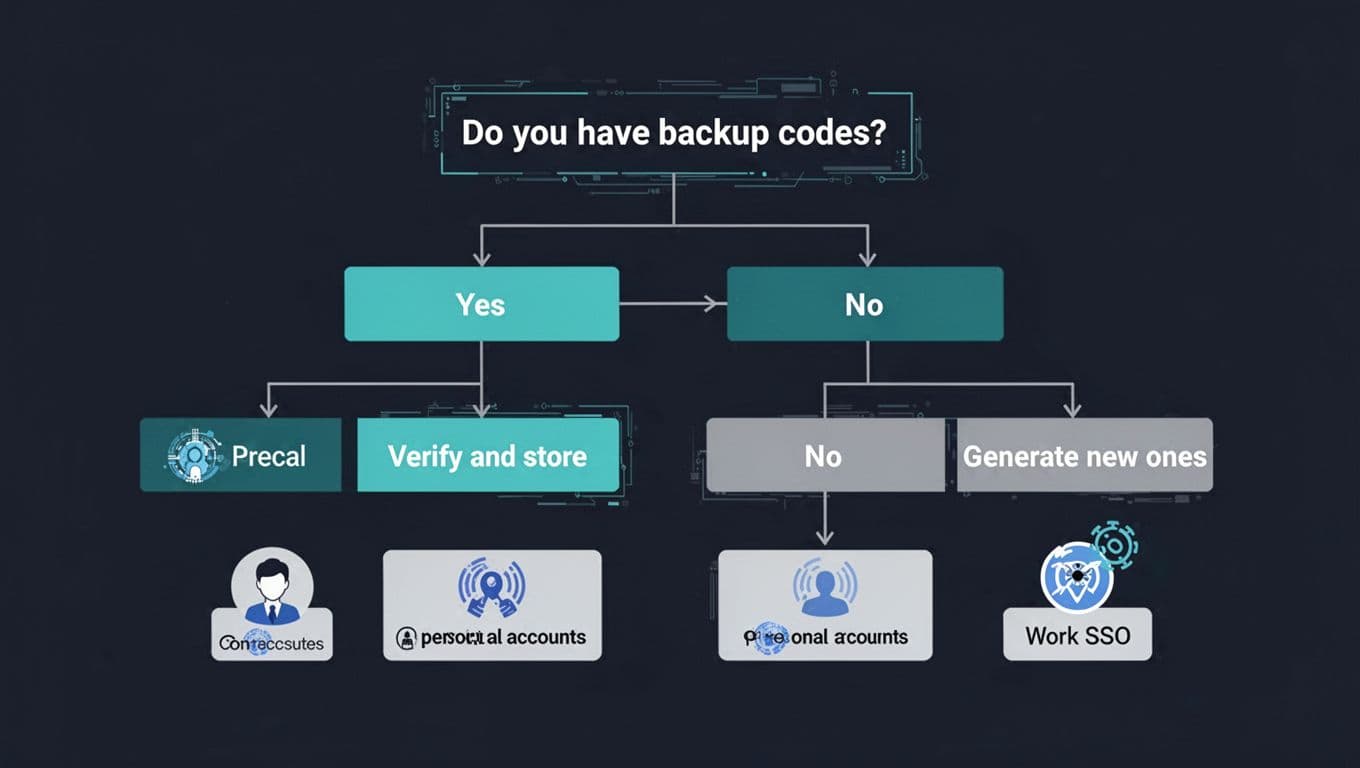
Use this simple flow for each account:
- Do you have backup codes (or an equivalent recovery option) right now?
Yes → Confirm where they’re stored, then move them to safer storage (and consider rotating if they’re old).
No → Generate new codes, store them safely, then write down where they live. Don’t leave the page until storage is done. - Is this a personal account or workplace SSO?
Personal → You usually control generation and storage, but your choices matter. If your password manager is the hub, treat it like the vault it is, with a strong master password and a recovery plan of its own.
Workplace SSO → Slow down. Your employer may use an identity provider and policies that restrict recovery codes, reset flows, or where you can store secrets. If your sign-in goes through SSO, you might have:
A company-managed authenticator, a hardware security key, help desk recovery, or device compliance checks. In that case, your “backup” is often an IT process, not a sheet of codes. Store only what policy allows, in company-approved tools.
A practical rule: if the account is tied to payroll, customer data, or admin rights, treat personal storage as a risk. Ask IT where recovery info should live and who’s allowed to access it.
Safe storage and rotation rules (and the stuff to never do)
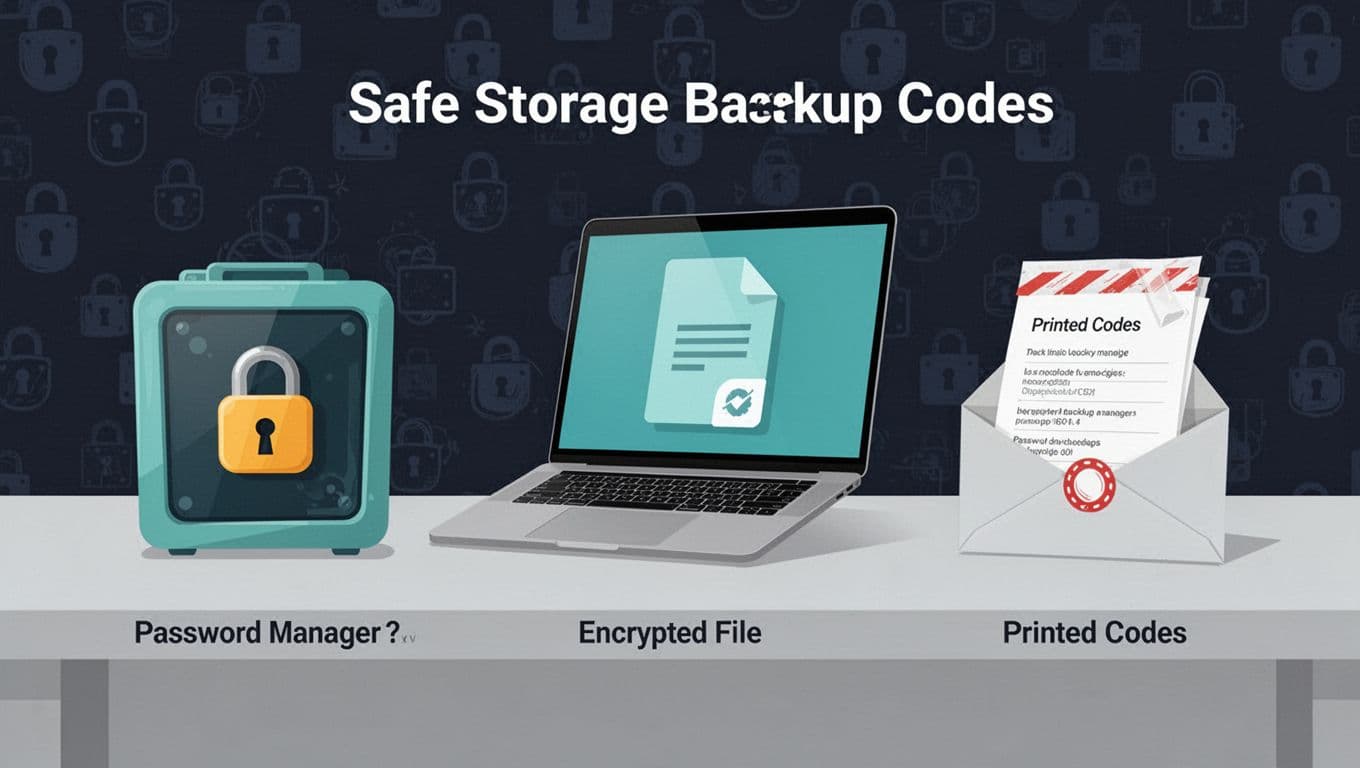
Backup codes are powerful because they bypass your normal second factor. That also makes them attractive to thieves. In 2026, the biggest real-world failures are still basic: codes saved where they sync, copied into chats, or left in a folder named “Important.”
Here are storage options that balance safety and real life:
- Password manager secure note (good default): Store codes in a protected note inside a reputable password manager, ideally under the matching login entry. The tradeoff is concentration of risk, one vault becomes a single target. If you want a clear discussion of that tradeoff, see Ask Leo’s take on storing 2FA in your vault.
- Encrypted file (good for small teams): Save codes in an encrypted document that requires a separate password, then store that password somewhere else (not in the same folder).
- Printed copy in a sealed envelope (best offline fallback): Print or write clearly, seal it, label the account group (not the codes), and store it in a locked, fire-resistant spot.
Avoid these common traps:
- Screenshots: They can sync to iCloud Photos, Google Photos, or OneDrive without you noticing.
- Email and chat apps: They create searchable copies and backups you don’t control.
- Plain notes apps: Many sync across devices by design, and some teams share notes without realizing it.
When to replace old backup codes
Rotate your codes if any of these are true: you used a code, you can’t remember where they’ve been stored, you shared them with anyone (even “temporarily”), you had malware concerns, or you lost a device that might have had access. Many people also choose a simple schedule, such as every 6 to 12 months, for high-value accounts.
Copy/paste template: record where codes are stored
Keep one short record per account. This is the part most people skip, then regret.
Account / Service:
Type: Personal or Work SSO
Backup codes present: Yes or No
Primary storage location: (password manager note, encrypted file, printed envelope)
Secondary storage location: (offline backup location)
Last rotated date: YYYY-MM-DD
Last audited date: YYYY-MM-DD
Work IT contact (if applicable):
Notes: (hardware key stored where, trusted devices, recovery key status)
Conclusion: treat backup codes like spare keys, not receipts
A backup codes audit doesn’t need a weekend project. In ten minutes, you can find what exists, fix unsafe storage, and rotate anything stale. Do it once for your main accounts, then add one account a week until you’re done. The goal is simple: when something breaks, your backup should work on the first try.

