Table of Contents
Postiz is a self-hosted social media management platform designed for those who value control, privacy, and efficiency. It’s an open-source tool that allows users to manage, schedule, and analyse their social media content across multiple platforms from one centralised dashboard. Built to empower businesses, creators, and teams, Postiz is perfect for anyone looking to streamline their online presence with a powerful yet simple-to-use tool.
Key Takeaways
- You need a Synology NAS with Docker, a static IP, and Portainer installed before starting.
- Postiz requires Cloudflare R2 for image uploads, set the bucket, CORS, API keys, and Account ID.
- Deploy Postiz via Portainer using the provided Docker stack, then set a Synology reverse proxy to HTTPS 443, forwarding to localhost:5000.
- Use a working domain such as .lan, not .local or synology.me, and point DNS or your hosts file to your NAS IP.
- Add social API keys to the stack environment variables, redeploy, then connect your channels in Postiz.
Prerequisites
- Synology NAS
- Static IP address
- Portainer
Step 1: Install Portainer on Synology NAS
Portainer is an open-source platform designed to simplify the management of containerized environments. It provides a graphical user interface (GUI) for Docker and Kubernetes, allowing users to manage and deploy containers, images, networks, and volumes without needing to use command-line tools. Portainer is widely used for its ease of use and lightweight design, making it ideal for both beginners and experienced developers managing containerized applications.
Key features of Portainer include:
- Container Management: Create, monitor, and manage Docker containers.
- Image Management: Pull, build, or clean Docker images.
- Kubernetes Management: Simplified control for Kubernetes clusters.
- User Access Control: Role-based access control for teams.
- Multi-Cluster Support: Manage multiple environments from a single interface.
- Resource Monitoring: Monitor resource consumption like CPU, memory, and storage.
Please follow this link to instruction on how to install it on your Synology NAS using Task Scheduler: Synology: 30 Second Portainer Install Using Task Scheduler & Docker – Marius Hosting
It takes around 30 seconds to install, it won’t take long!
Step 2: Cloudflare R2 Setup
At the moment, the only way to upload images is to configure R2. It’s free.
Create account and the bucket
- Create a new account on : Cloudflare | Web Performance & Security
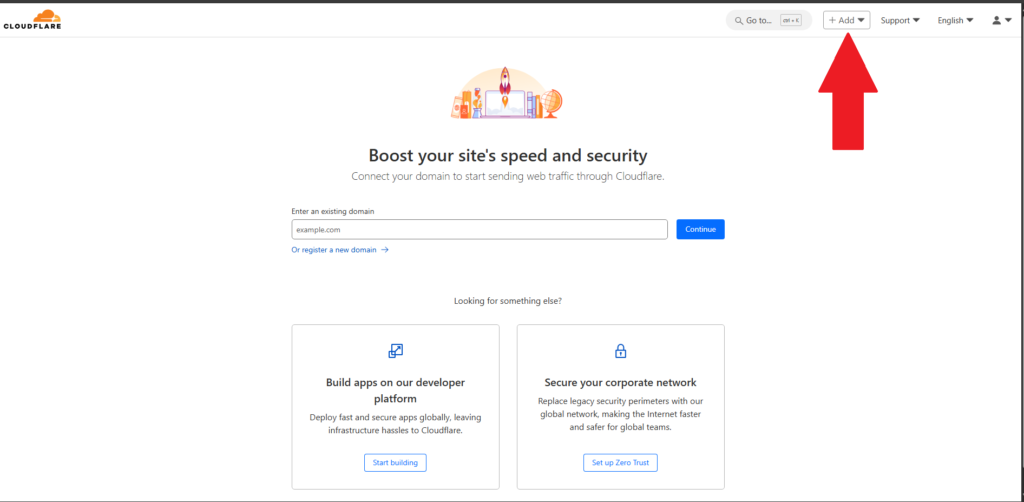
- Click on +ADD button
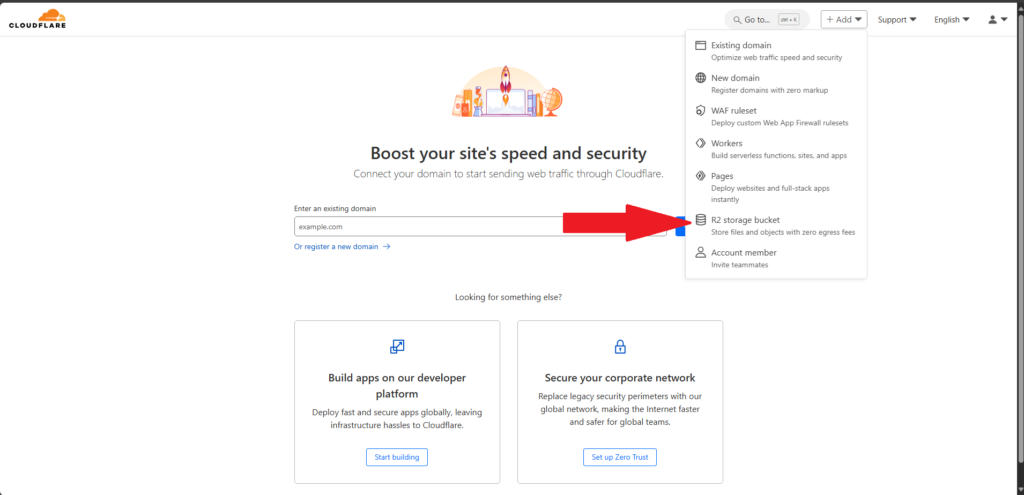
- Click on R2 storage bucket
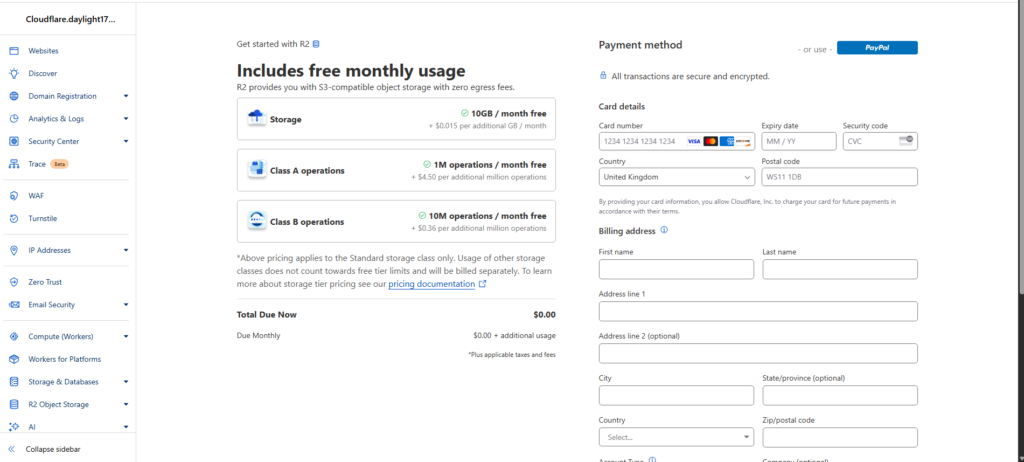
- R2 Storage bucket is free(limited) but you do need to add your card details so they can charge if you go over the limit. Fill out the details.
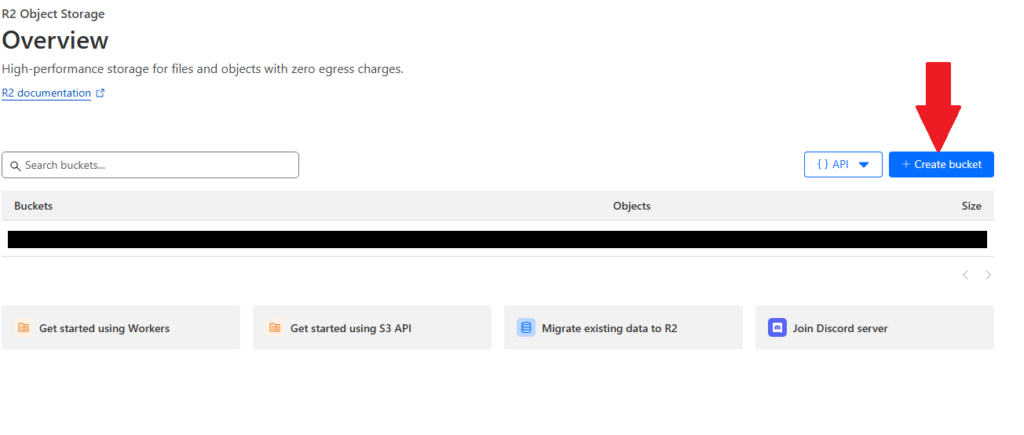
- Click on R2 Object Storage -> Overview to setup the R2 object
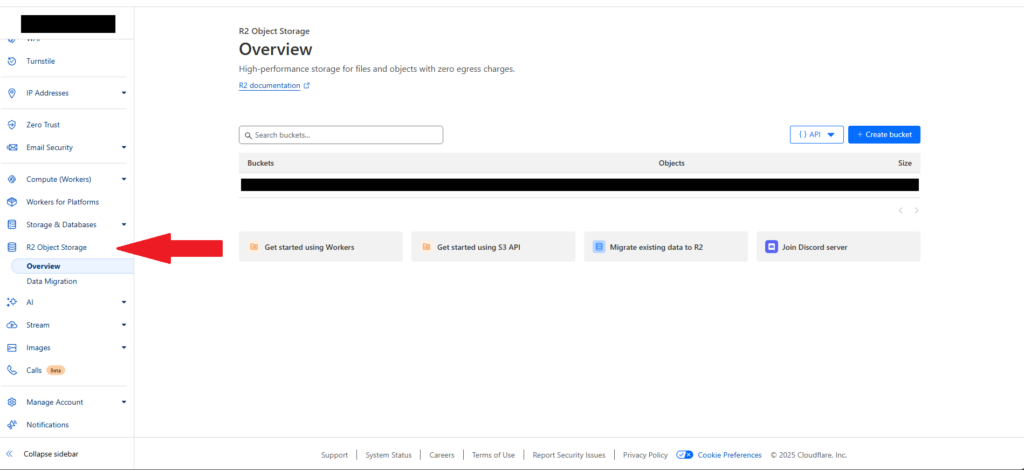
- Click +Create Bucket
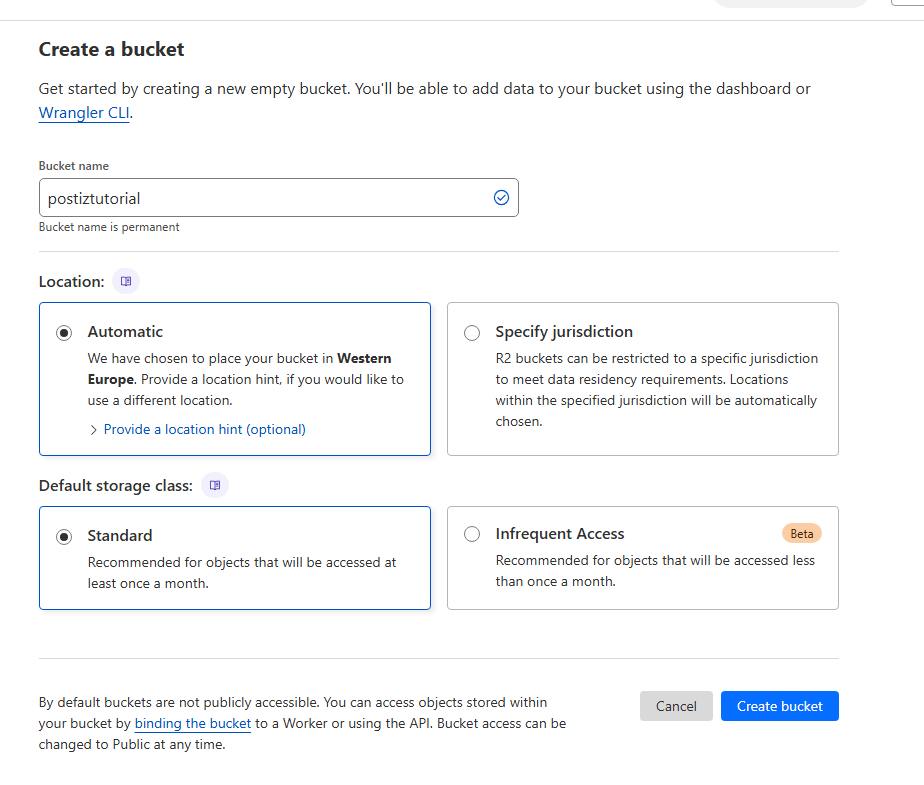
- Give the bucket name. Selection Location to Automatic and Default storage class as Standard
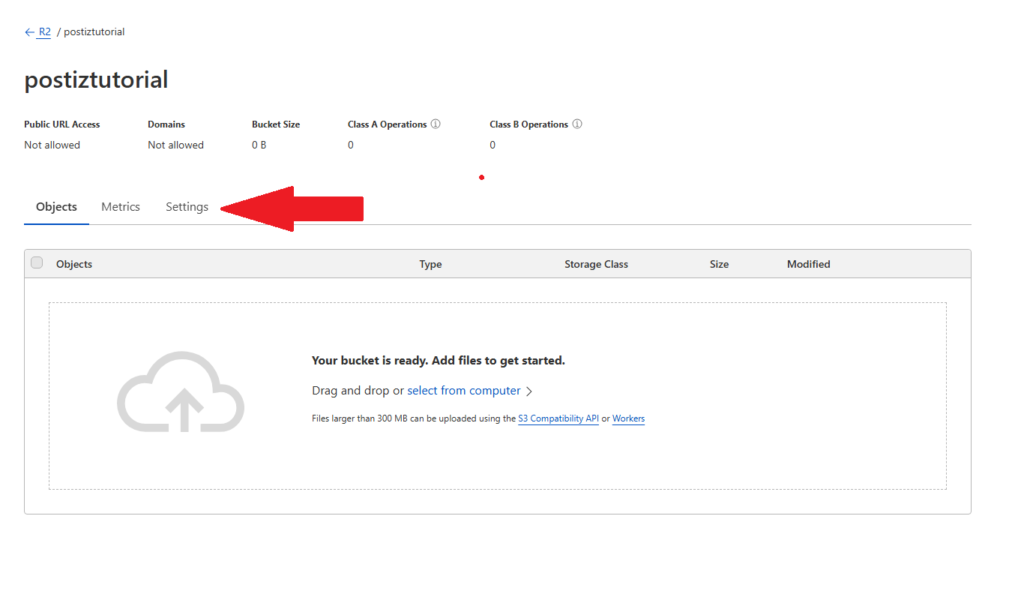
- Once the bucket is created, click on Settings
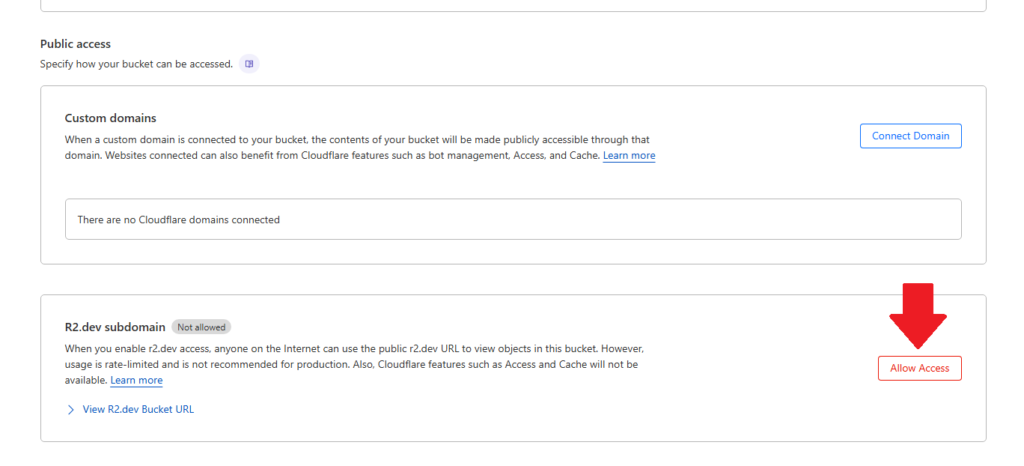
- Scroll down until you see Public Access
- You can connect custom domain if you have one. But we will just use a free one that is provided with R2.
- Click on allow access
- Click on View R2.dev bucket URL
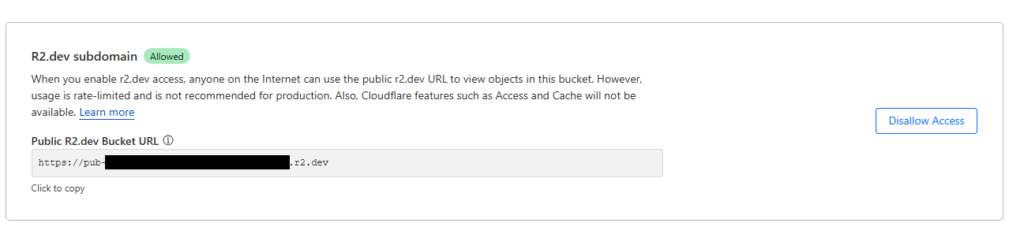
- Copy the URL as you will need to enter it in the “CLOUDFLARE_BUCKET_URL” in Step 3.
Add the CORS headers
- Click Add CORS policy. You can find it right under the R2.dev Subdomain box
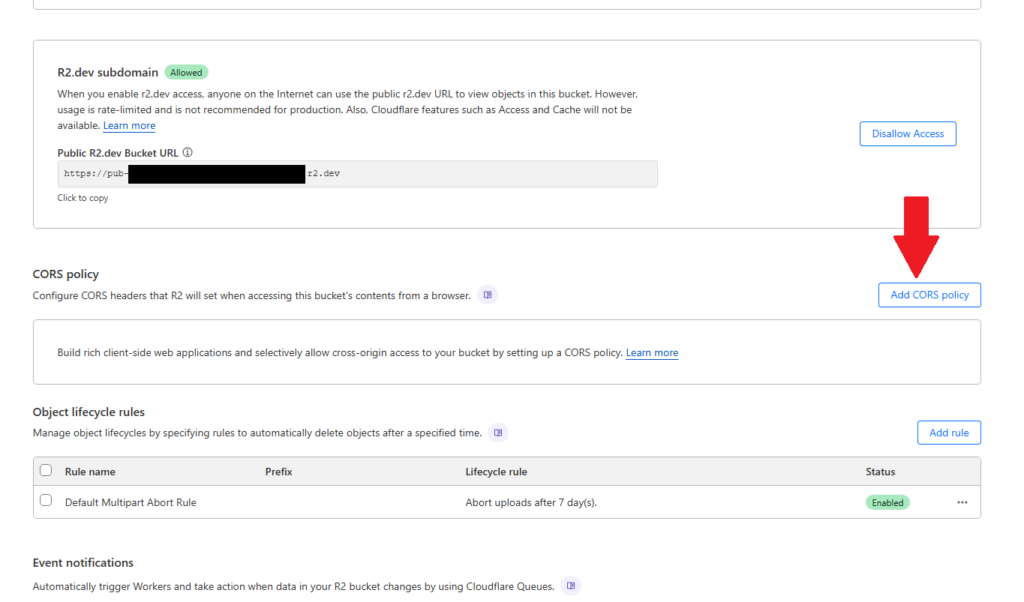
- Edit the script below, in AllowedOrigins add your domain. Remove the https://postiz.yourdomain.lan and replace it with your own domain that you will use in Step 3. You can always change and edit this if you need to.
[
  {
    "AllowedOrigins": [
      "http://localhost:4200",
      "https://postiz.yourdomain.lan"
    ],
    "AllowedMethods": [
      "GET",
      "POST",
      "HEAD",
      "PUT",
      "DELETE"
    ],
    "AllowedHeaders": [
      "Authorization",
      "x-amz-date",
      "x-amz-content-sha256",
      "content-type"
    ],
    "ExposeHeaders": [
      "ETag",
      "Location"
    ],
    "MaxAgeSeconds": 3600
  }
]- Save the CORS Policy
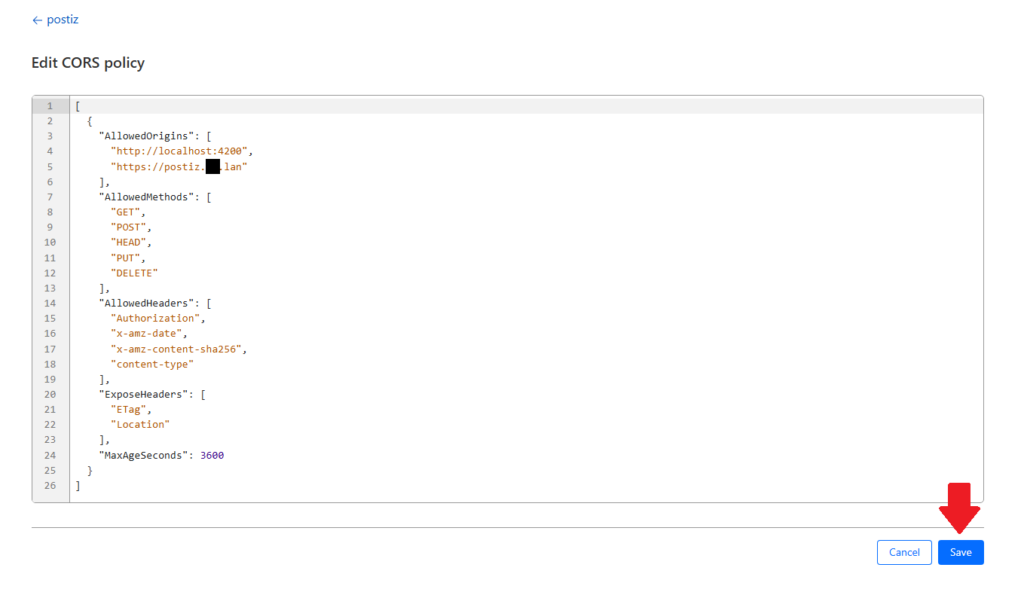
- Make sure it looks like this:

Generate the API Keys
- Go back to the R2 Object Storage -> Overview
- Click on API and Then on Manage API Keys
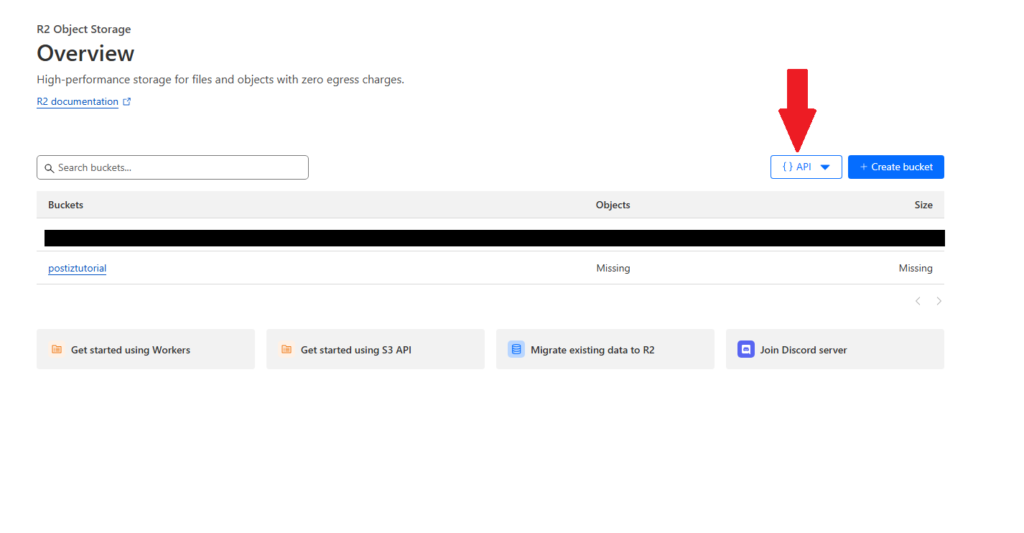
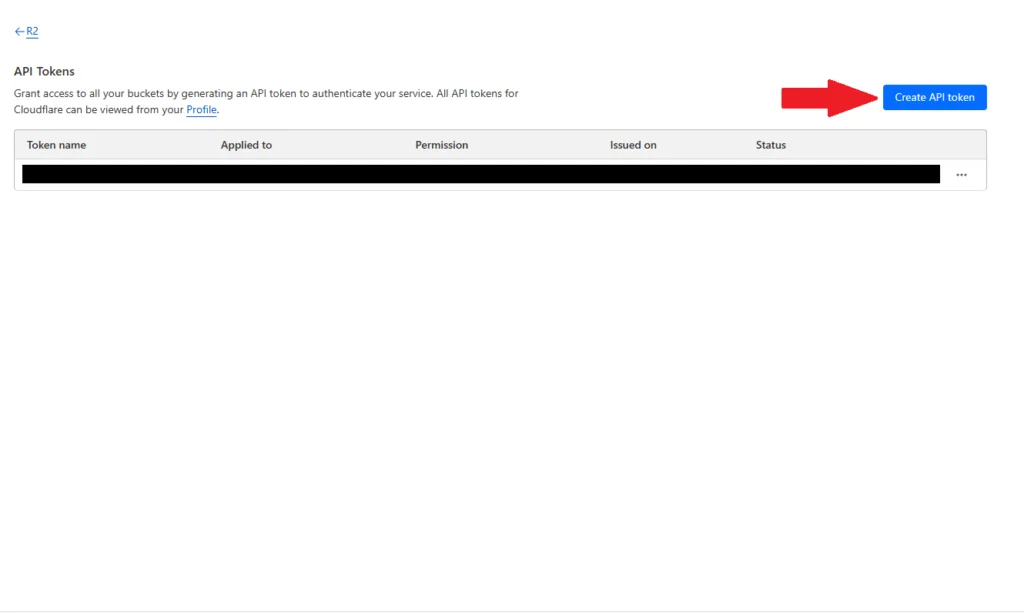
- Click on Create API Token
- Set the API token to Object Read & Write
- Apply to bucket you want to use it on.
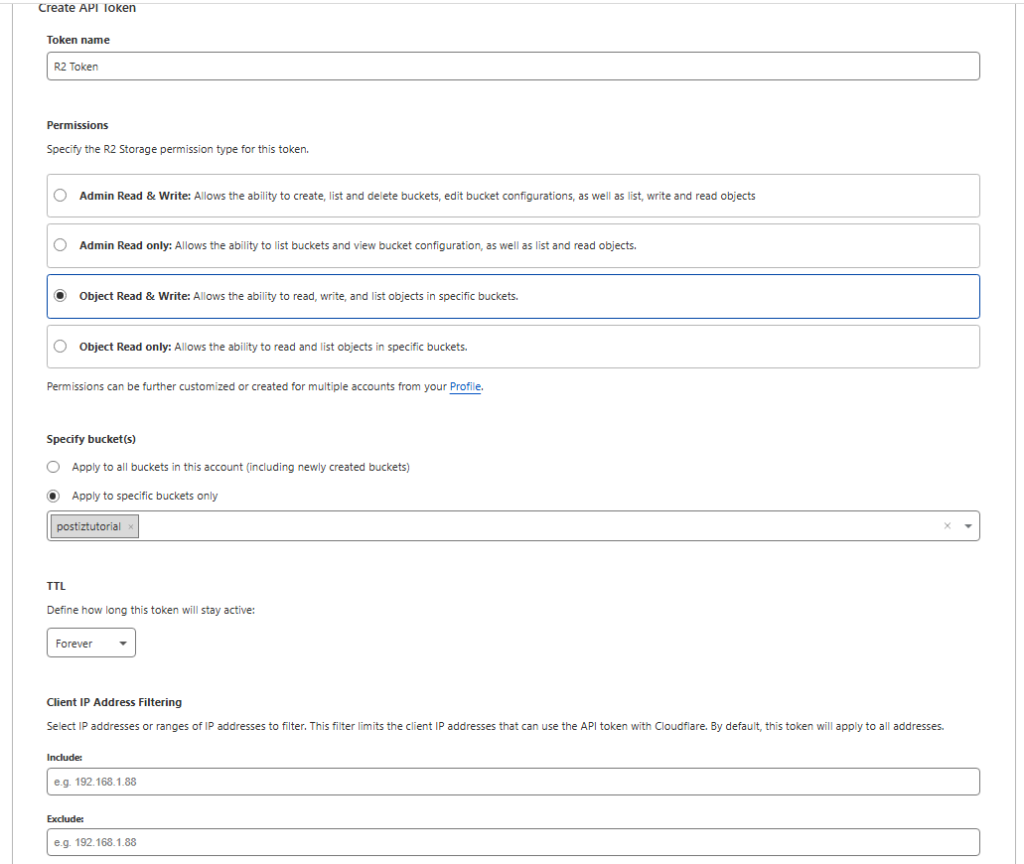
- Then click Create API Token
- On next page you will have Access Key ID and Secret Access Key. Make sure you copy them.
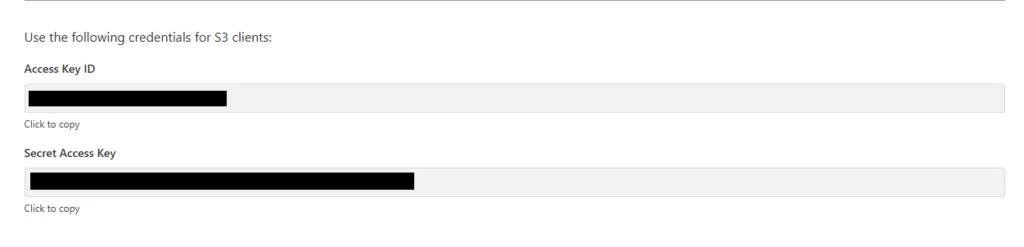
- You will need to enter the access key id and secret access key in step 3 under:
CLOUDFLARE_ACCESS_KEY: "enter your API access key"
CLOUDFLARE_SECRET_ACCESS_KEY: "enter your secret key"
Get the Account ID from CloudFlare
- Go to Compute(Workers) -> Workers & Pages
- Copy the Account ID
- You will need to paste the Account ID in Step 3 under:
CLOUDFLARE_ACCOUNT_ID: "enter your account ID"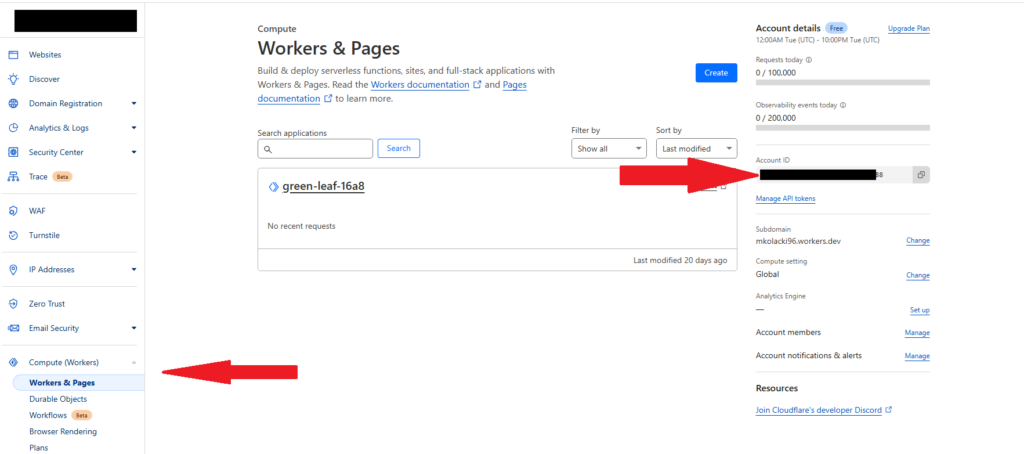
Step 3: Install Postiz using Portainer on Synology NAS
Deploy Postiz docker on Portainer
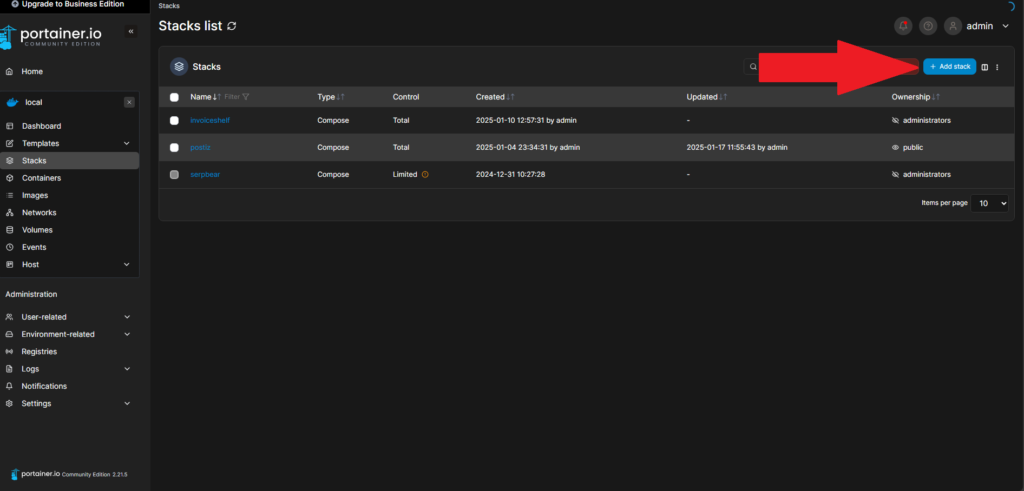
- In Portioner click + ADD STACK
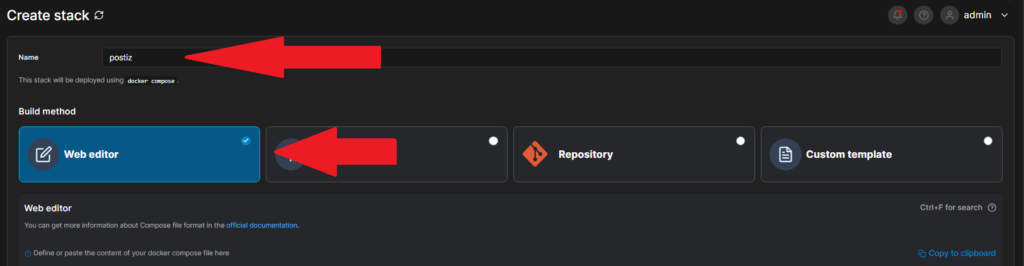
- Select “Web Editor” and give the container a meaningful name.
- Paste this into the web editor:
services:
  postiz:
    image: ghcr.io/gitroomhq/postiz-app:latest
    container_name: postiz
    restart: always
    environment:
      # You must change these. Replace `postiz.your-server.com` with your DNS name - what your web browser sees.
      MAIN_URL: "https://postiz.your-server.com"
      FRONTEND_URL: "https://postiz.your-server.com"
      NEXT_PUBLIC_BACKEND_URL: "https://postiz.your-server.com/api"
      JWT_SECRET: "xxx5189sadhnjkdsakn123" #Random Letters and numebers
      # These defaults are probably fine, but if you change your user/password, update it in the
      # postiz-postgres or postiz-redis services below.
      DATABASE_URL: "postgresql://postiz-user:postiz-password@postiz-postgres:5432/postiz-db-local"
      REDIS_URL: "redis://postiz-redis:6379"
      BACKEND_INTERNAL_URL: "http://localhost:3000"
      IS_GENERAL: "true" # Required for self-hosting.
      CLOUDFLARE_ACCOUNT_ID: "enter your account ID"
      CLOUDFLARE_ACCESS_KEY: "enter your API access key"
      CLOUDFLARE_SECRET_ACCESS_KEY: "enter your secret key"
      CLOUDFLARE_BUCKETNAME: "enter the bucket name"
      CLOUDFLARE_BUCKET_URL: "enter your bucket ID"
      CLOUDFLARE_REGION: "enter your region"
      STORAGE_PROVIDER: "cloudflare" #Can be cloudflare or local - local currently doesn't work well on localhost so R2 is recommended.
      NEXT_PUBLIC_UPLOAD_STATIC_DIRECTORY: "/uploads"
      PLOAD_DIRECTORY: "/uploads"
      #DISABLE_REGISTRATION: "True"
      # Uncomment the API you need, make sure you generate the keys on vendors websites.
      #X_API_KEY: "your_client_id"
      #X_API_SECRET: "your_client_secret "
      #FACEBOOK_APP_ID: "your_client_id"
      #FACEBOOK_APP_SECRET: "your_client_secret"
      #MASTODON_CLIENT_ID: "your_client_id"
      #MASTODON_CLIENT_SECRET: "your_client_secret"
      #DISCORD_CLIENT_ID: "your_client_id"
      #DISCORD_CLIENT_SECRET: "your_client_secret"
      #DRIBBLE_CLIENT_ID: "your_client_id"
      #DRIBBLE_CLIENT_SECRET: "your_client_secret"
      #LINKEDIN_CLIENT_ID: "your_client_id"
      #LINKEDIN_CLIENT_SECRET: "your_client_secret"
      #PINTEREST_CLIENT_ID: "your_client_id"
      #PINTEREST_CLIENT_SECRET: "your_client_secret"
      #REDDIT_CLIENT_ID: "your_client_id"
      #REDDIT_CLIENT_SECRET: "your_client_secret"
      #SLACK_ID="your_client_id"
      #SLACK_SECRET="your_client_secret"
      #TIKTOK_CLIENT_ID: "your_client_id"
      #TIKTOK_CLIENT_SECRET: "your_client_secret"
      #YOUTUBE_CLIENT_ID: "your_client_id"
      #YOUTUBE_CLIENT_SECRET: "your_client_secret"

    volumes:
      - postiz-config:/config/
      - postiz-uploads:/uploads/
    ports:
      - 5000:5000
    networks:
      - postiz-network
    depends_on:
      postiz-postgres:
        condition: service_healthy
      postiz-redis:
        condition: service_healthy

  postiz-postgres:
    image: postgres:17-alpine
    container_name: postiz-postgres
    restart: always
    environment:
      POSTGRES_PASSWORD: postiz-password
      POSTGRES_USER: postiz-user
      POSTGRES_DB: postiz-db-local
    volumes:
      - postgres-volume:/var/lib/postgresql/data
    networks:
      - postiz-network
    healthcheck:
      test: pg_isready -U postiz-user -d postiz-db-local
      interval: 10s
      timeout: 3s
      retries: 3
  postiz-redis:
    image: redis:7.2
    container_name: postiz-redis
    restart: always
    healthcheck:
      test: redis-cli ping
      interval: 10s
      timeout: 3s
      retries: 3
    volumes:
      - postiz-redis-data:/data
    networks:
      - postiz-network


volumes:
  postgres-volume:
    external: false

  postiz-redis-data:
    external: false

  postiz-config:
    external: false

  postiz-uploads:
    external: false

networks:
  postiz-network:
    external: false
IMPORTANT: some domains don’t work. For example, we tried using .local domain and it didn’t work however .lan does work okay. Also synology.me etc domains do not work with this.
- Deploy the stack:
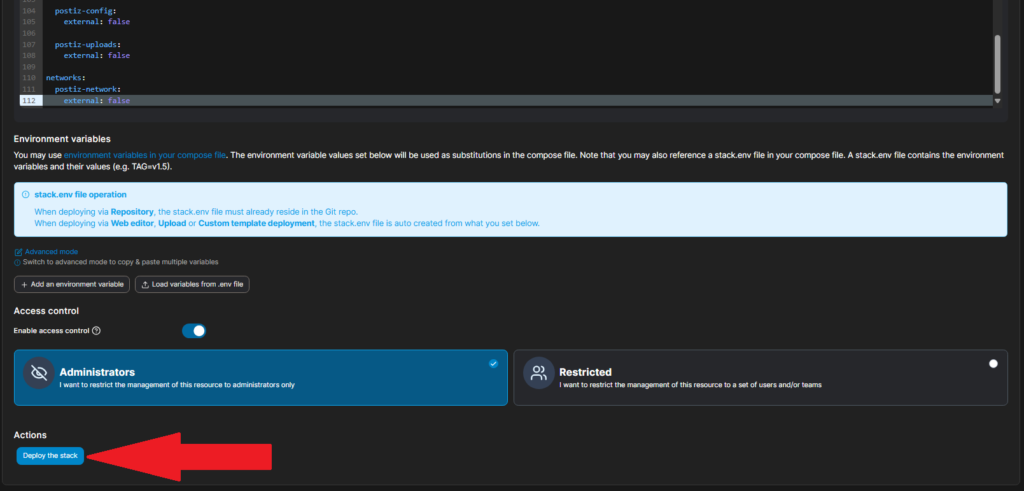
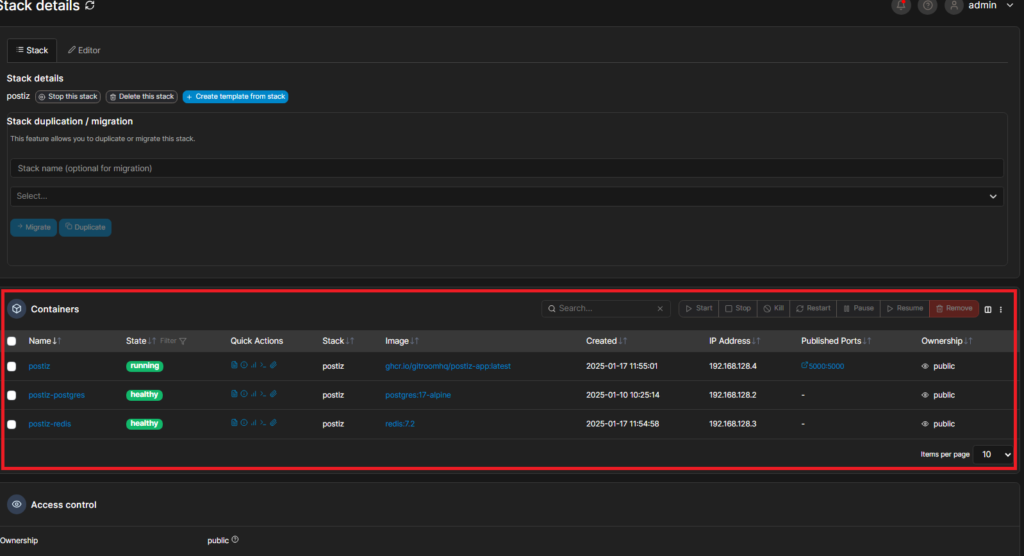
- The deployment process might take few minutes. Once its done verify that the containers are showing as HEALTHY(GREEN). If its not showing green, double check your docker file to see if there’s any typos.
Setup the reverse proxy for Postiz on Synology NAS
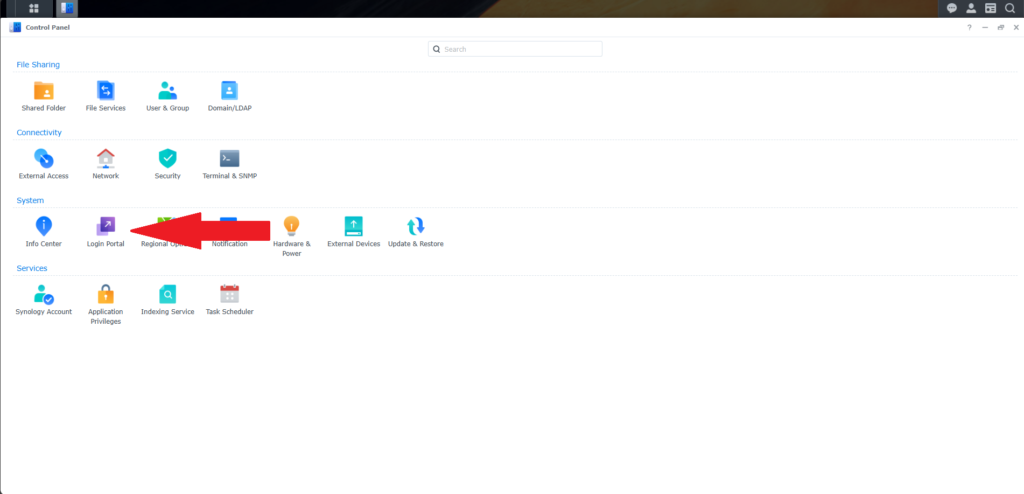
- Go to Settings -> Login Portal
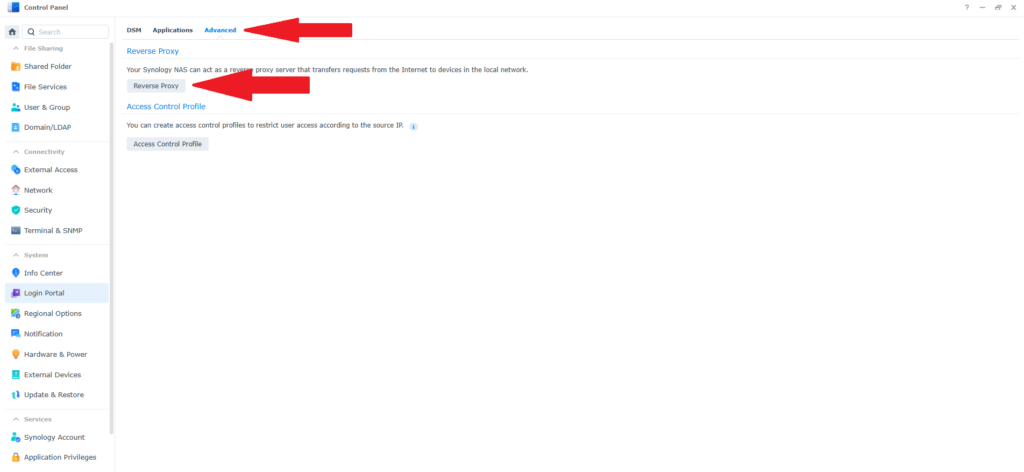
- Click Advanced -> Reverse Proxy
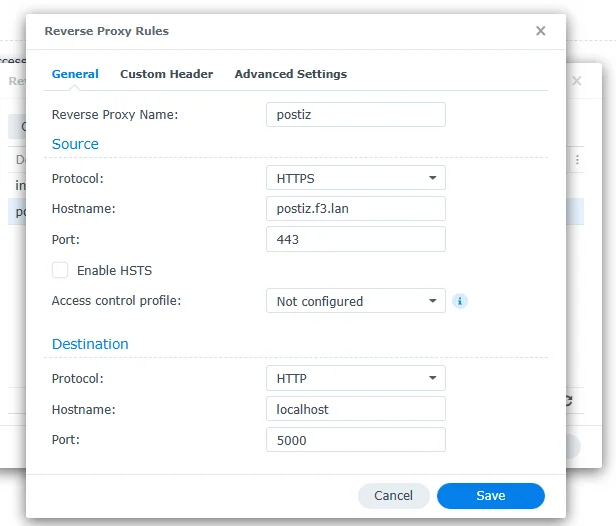
- Create a new reverse proxy and set the following settings:
Source:
- Protocol: HTTPS
- Hostname: postiz.whateverdomain.lan (the domain you used in the file above, its important to use the exactly the same domain name)
- port: 443
Destination:
- Protocol: HTTP
- Hostname: localhost
- Port: 5000
Example of my postiz reverse proxy:
- click SAVE
Your postiz is successfully installed now but it won’t be accessible yet. That is because you need to point the DNS records to your NAS IP address so you can use the url to access it.
If you got a DNS server, use your DNS server to point A record to the synology NAS.
Step 4 (Optional): Configure your Windows Host file (DNS) to point to the postiz domain
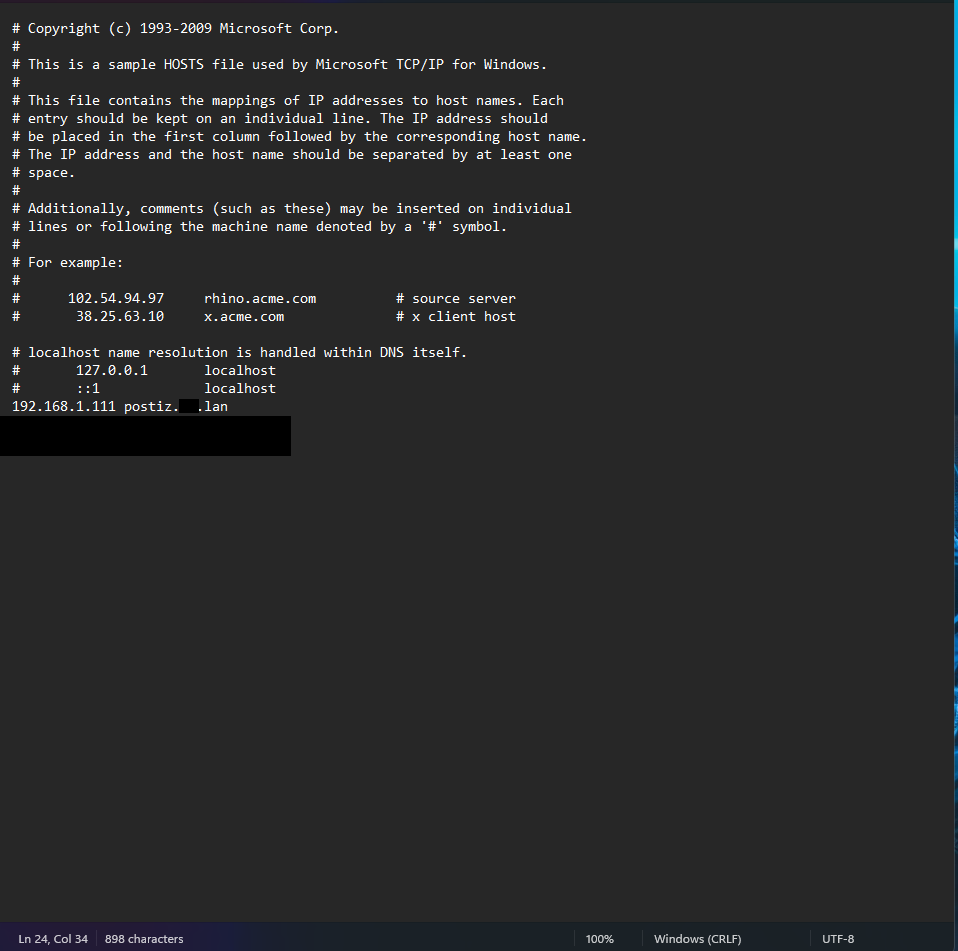
- Run Notepad as Administrator
- Click on File -> Open
- Open the hosts file which is located in C:\Windows\System32\drivers\etc
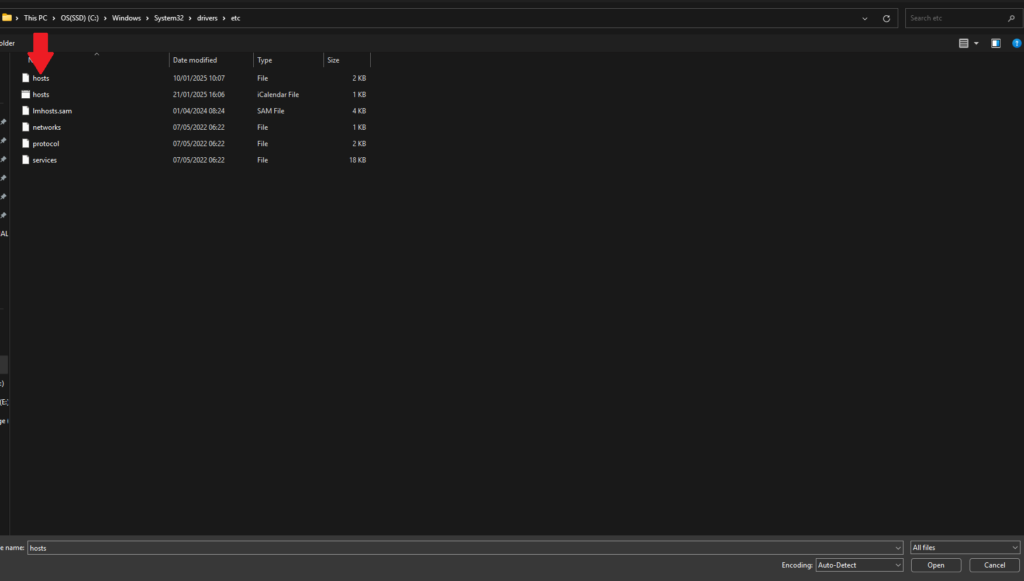
- Under #localhost name resolution is handled within DNS itself add the following:
0.0.0.0 postiz.whateverdomain.lan
Replace 0.0.0.0 with your synology ip and the domain with your postiz domain that was step in step 3.
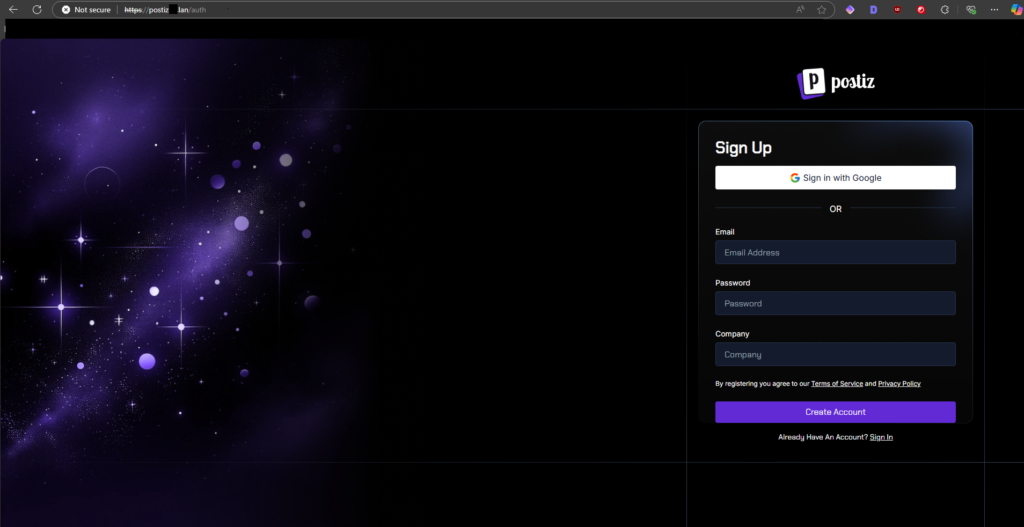
- You should be able to enter the URL in your web browser now and access Postiz.
Generate Social Media API Keys for Postiz
To connect social media accounts you need to configure the APIs for each social media then add the keys and secrets to the composer file we made in step 3. Just uncomment the social media you need and add the id and keys.
Remember to redeploy the stack in Portainer and pull the new image
      #X_API_KEY: "your_client_id"
      #X_API_SECRET: "your_client_secret "
      #FACEBOOK_APP_ID: "your_client_id"
      #FACEBOOK_APP_SECRET: "your_client_secret"
      #MASTODON_CLIENT_ID: "your_client_id"
      #MASTODON_CLIENT_SECRET: "your_client_secret"
      #DISCORD_CLIENT_ID: "your_client_id"
      #DISCORD_CLIENT_SECRET: "your_client_secret"
      #DRIBBLE_CLIENT_ID: "your_client_id"
      #DRIBBLE_CLIENT_SECRET: "your_client_secret"
      #LINKEDIN_CLIENT_ID: "your_client_id"
      #LINKEDIN_CLIENT_SECRET: "your_client_secret"
      #PINTEREST_CLIENT_ID: "your_client_id"
      #PINTEREST_CLIENT_SECRET: "your_client_secret"
      #REDDIT_CLIENT_ID: "your_client_id"
      #REDDIT_CLIENT_SECRET: "your_client_secret"
      #SLACK_ID="your_client_id"
      #SLACK_SECRET="your_client_secret"
      #TIKTOK_CLIENT_ID: "your_client_id"
      #TIKTOK_CLIENT_SECRET: "your_client_secret"
      #YOUTUBE_CLIENT_ID: "your_client_id"
      #YOUTUBE_CLIENT_SECRET: "your_client_secret"
Follow the links to official documentation that will walk you through the process of adding the channels.
Official Documentation
- CloudFlare R2 setup: https://docs.postiz.com/configuration/r2
- Docker Compose setup: https://docs.postiz.com/installation/docker-compose
- Add BlueSky as a channel: https://docs.postiz.com/providers/bluesky
- Add Discord as a channel: https://docs.postiz.com/providers/discord
- Add Dribbble as a channel: https://docs.postiz.com/providers/dribbble
- Add Facebook as a channel: https://docs.postiz.com/providers/facebook
- Add Instagram as a channel: https://docs.postiz.com/providers/instagram
- Add Linkedin as a channel: https://docs.postiz.com/providers/linkedin
- Add Linkedin Page as a channel: https://docs.postiz.com/providers/linkedin-page
- Add Mastodon as a channel: https://docs.postiz.com/providers/mastodon
- Add Pinterest as a channel: https://docs.postiz.com/providers/pinterest
- Add Reddit as a channel: https://docs.postiz.com/providers/reddit
- Add Slack as a channel: https://docs.postiz.com/providers/slack
- Add Threads as a channel: https://docs.postiz.com/providers/threads
- Add TikTok as a channel: https://docs.postiz.com/providers/tiktok
- Add X ( Twitter) as a channel: https://docs.postiz.com/providers/x
- Add YouTube as a channel: https://docs.postiz.com/providers/youtube
Support
Postiz Support can be accessed through Discord.
Frequently Asked Questions About Installing Postiz on Synology NAS
Can I install Postiz from Synology’s Package Center?
No, Postiz isn’t natively available in Synology’s Package Center. You’ll need to download the docker container and install it manually.
Why do I need Cloudflare R2 and what settings matter?
Postiz uses R2 for image uploads. Create an R2 bucket, enable public access, add a CORS policy with your Postiz domain, and create an API token with Object Read & Write. You also need the Account ID. Enter these in the Docker stack environment.
Which domains work with Postiz on Synology?
Use a domain that resolves on your network. .lan works reliably. .local and synology.me do not work for this setup. Set the same domain in MAIN_URL, FRONTEND_URL, and NEXT_PUBLIC_BACKEND_URL, then map DNS or the hosts file to your NAS IP.
How do I expose Postiz securely on my Synology?
Create a reverse proxy in Control Panel, Login Portal, Advanced, Reverse Proxy. Set HTTPS as the source on your chosen Postiz domain, port 443. Point the destination to HTTP, localhost, port 5000. Save, then test the URL.
What if the containers are not healthy after deploy?
Check Portainer health status. Fix any typos in environment variables and URLs, confirm database and Redis variables, and verify R2 keys, bucket name, and region. Redeploy the stack after changes.

