Your phone lights up, once, then again, then again. “Approve sign-in?” keeps popping up like a stuck doorbell. That noise is the point.
MFA fatigue attacks (also called push-spam or MFA bombing) try to turn a safety check into an annoyance you’ll clear without thinking. In January 2026, there haven’t been major public breach headlines tied to push-spam alone, but the pattern keeps showing up in identity incidents and vishing attempts, because it still works when orgs rely on one-tap approvals.
This guide is written in an incident-response style: what to look for, what to do in the first minute, and how admins can contain it fast.
What push-spam prompts look like (and why they still work)
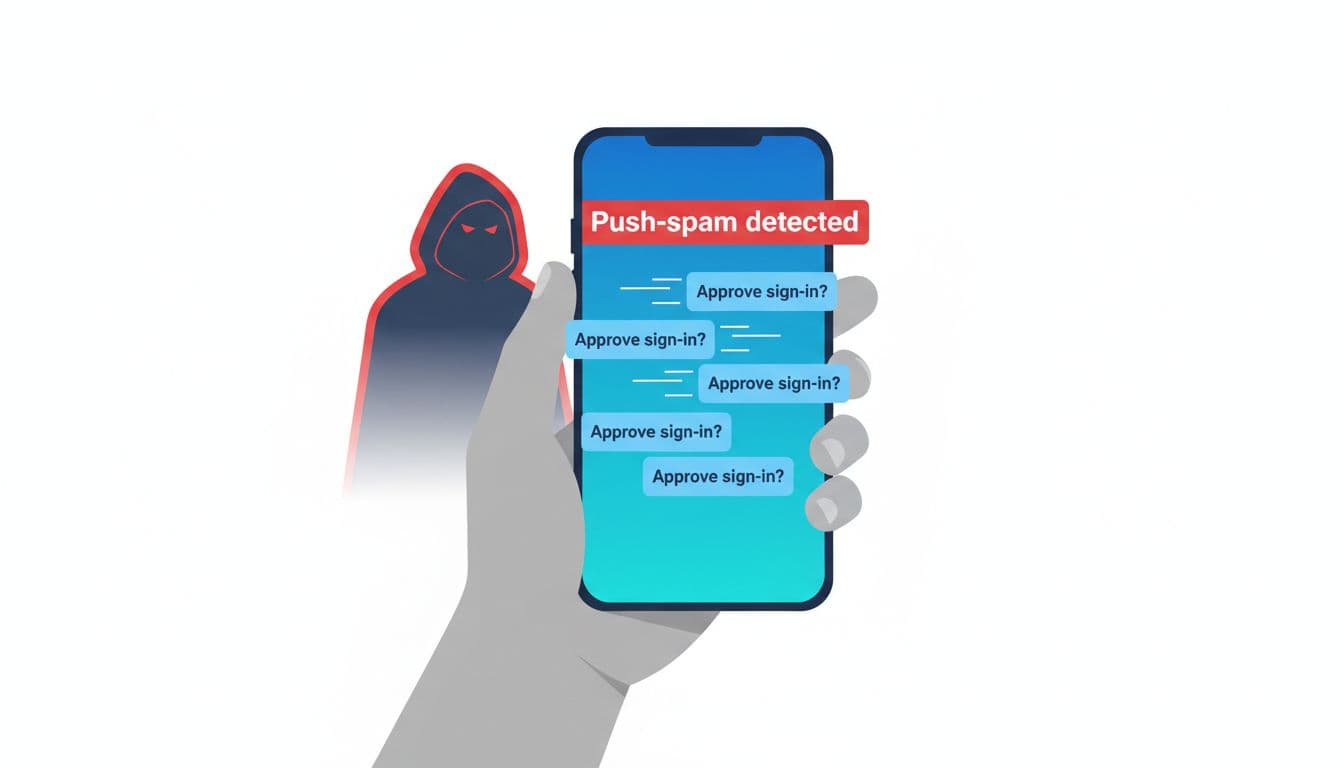
Most MFA fatigue attacks start with a stolen password (phishing, password reuse, or a sprayed credential). The attacker can’t finish signing in, so they trigger repeated push prompts, hoping you approve to make it stop, or approve while distracted.
Some crews add a second move: they call the user or helpdesk pretending to be IT. The line is simple: “We see suspicious activity, approve the prompt so we can block it.” That’s how fatigue becomes a full account takeover. For a plain-language explanation to share internally, see MFA fatigue warning for users.
Concrete indicators (spot it in seconds)
| Indicator you notice | What it often means | What to do right now |
|---|---|---|
| Multiple unsolicited pushes in a short window | Someone has your password and is hammering MFA | Deny, report, stop interacting with prompts |
| Prompts at odd hours (late night, weekend) | Automated attempts, sometimes from overseas | Deny, report, check your recent sign-ins |
| Location or device mismatch | Real login attempt from a new device/IP | Deny, report, change password when safe |
| Repeated denies, then a password reset prompt | Escalation attempt after failing MFA | Don’t approve, report, call helpdesk via known number |
| “Helpdesk” asks you to approve to “stop alerts” | Social engineering layered onto push-spam | Refuse, hang up, report as vishing |
If you see repeated unexpected prompts, do this: tap Deny, then report it immediately. Silence is what attackers count on.
For a defender-focused overview of why these attacks keep showing up and common mitigations, Arctic Wolf’s write-up is a useful reference: how to stop MFA fatigue attacks.
60-second quick actions for employees (stop the takeover early)
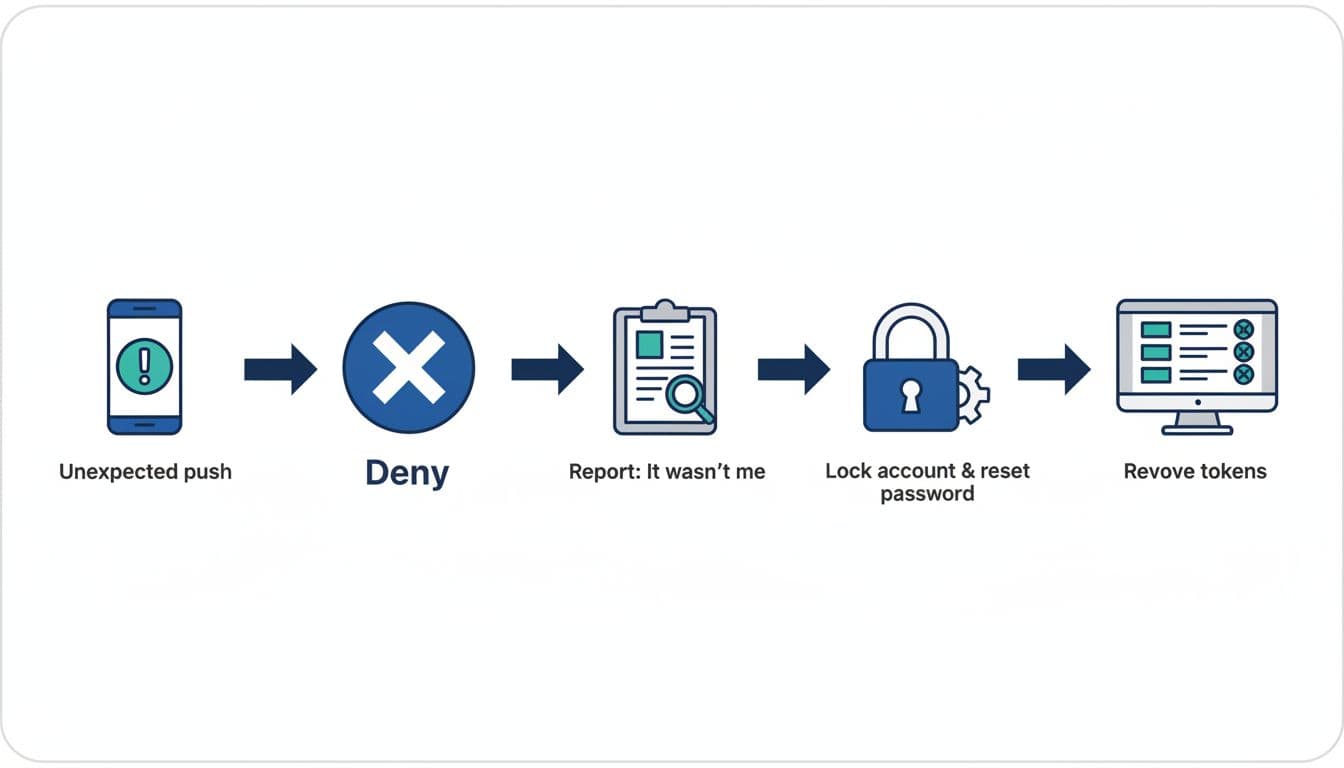
This is the fastest path to safety. It’s designed for busy people, not security pros.
- Don’t approve. Even one mistaken tap can create a valid session for the attacker.
- Tap Deny (or “No, it’s not me”). If your app shows details, glance at device, location, and app name.
- Report immediately using a single sentence that your SOC can search.
Use this microcopy (copy/paste into chat, ticket, or the “report” button if your MFA app supports it):
“I did not attempt this sign-in. I’m receiving repeated MFA prompts. Time: ___, app: ___, my location: ___.” 4. If you entered your password recently, change it right after you report (use a known-good link, not an email link). 5. If anyone calls or messages you about it, don’t follow instructions from the caller. Call the helpdesk back using your company directory or the number on your badge.
If you see a password reset prompt you didn’t start, do this: stop, report, and call the helpdesk back on a known number. That combo is a strong compromise signal.
What not to do: don’t keep tapping prompts to “make them go away,” don’t share one-time codes, and don’t install “support” apps during the call.
15-minute containment runbook for admins (identity, helpdesk, SOC)
When a push-spam report comes in, treat it like a live intrusion until proven otherwise. The goal is to cut off access, then remove any sessions the attacker already got.
Minute 0 to 2: Confirm and stabilize
- Verify the user out of band (known phone number, corporate chat with verified device, or manager confirmation).
- Temporarily block sign-in or disable the account if prompts are still arriving.
- Capture timestamps from the user (first prompt time, frequency, any calls received).
If you see helpdesk social engineering, do this: require identity proofing before any MFA reset, and log the caller details as an incident artifact.
Minute 2 to 5: Triage sign-ins and pattern
- Review identity provider sign-in logs for IP, geo, device, user agent, and “MFA denied” streaks.
- Check for new device registration, “remembered device” events, or unfamiliar authenticator enrollments.
- Look for correlated activity across other accounts (same source IP, same ASN, same pattern).
Minute 5 to 10: Contain sessions and credentials
- Revoke active sessions and refresh tokens (terminate all sessions where supported).
- Force password reset and invalidate password reset tokens.
- Reset MFA methods (remove unknown factors, require re-enrollment).
- If using conditional access, tighten policy for the user or group (block risky sign-ins, require compliant device).
Minute 10 to 15: Eradicate persistence and check blast radius
- Inspect mailbox and app artifacts: forwarding rules, inbox rules, OAuth consent grants, suspicious app registrations.
- Check for privileged changes: role assignments, group membership edits, new API keys.
- Open an incident record, notify leadership per policy, and decide if wider hunting is needed.
For high-risk roles, start planning a move away from push approvals. A practical overview of 2026-ready options is in phishing-resistant MFA guidance.
2026 controls that reduce MFA fatigue attacks (without annoying users)
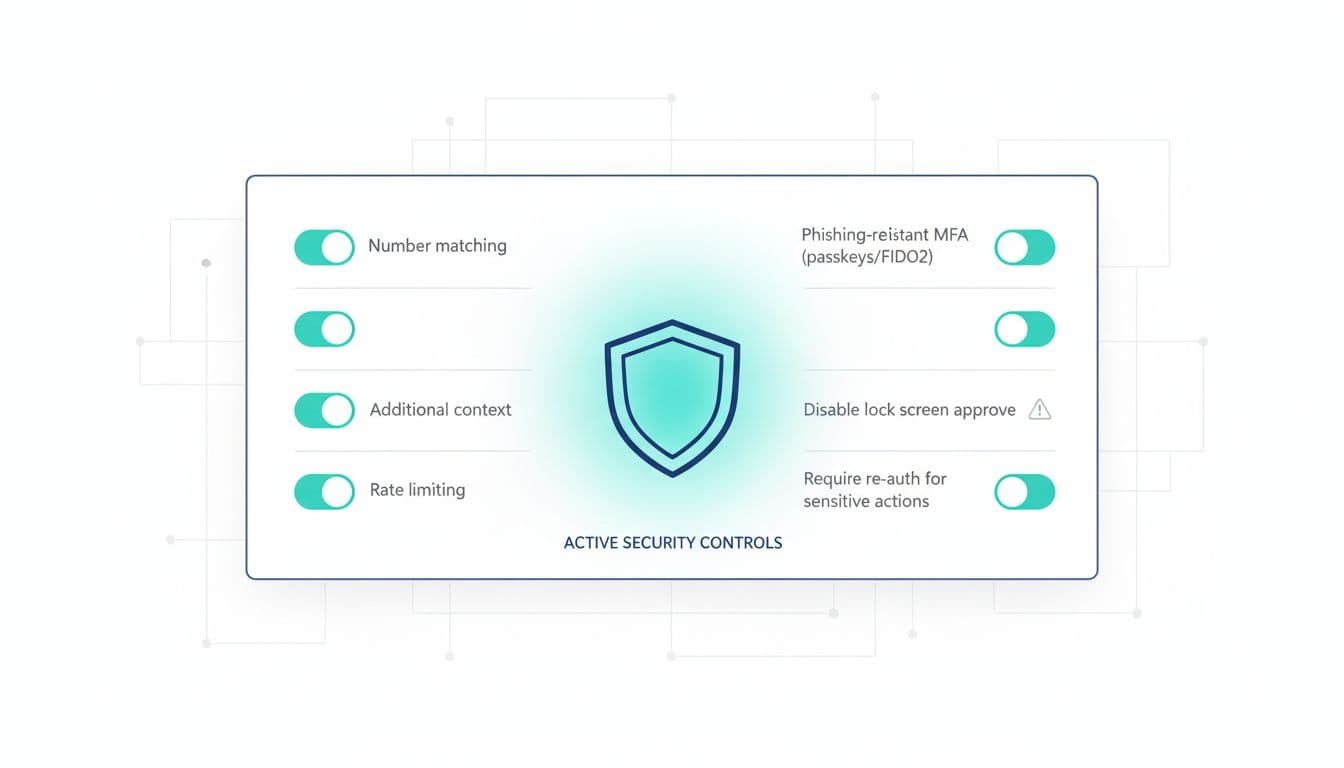
Push MFA isn’t “bad,” but one-tap approve is easy to abuse. In 2026, the strongest approach is reducing how often users must decide, while making each decision clearer.
Prioritize these changes:
- Move admins, finance, and execs to phishing-resistant MFA (passkeys, FIDO2 security keys). This removes the “approve under pressure” failure mode.
- Enforce number matching and additional context (app name, location, device). A vague prompt invites mistakes.
- Implement push rate limiting and lockouts. Dozens of prompts should trigger an automatic cool-down, not more prompts.
- Disable approve from lock screen where possible. Approval should require intentional unlock and review.
- Require re-auth for sensitive actions (MFA method changes, password reset, adding forwarding rules, elevating roles).
- Add helpdesk guardrails: no MFA resets without identity proofing, and alert on repeated reset attempts.
These controls work best when paired with a simple norm: deny and report is always the right move for an unexpected prompt.
One-page checklist summary (printable)
Employees (60 seconds)
- Deny unexpected prompts
- Report using: “I did not attempt this sign-in”
- Change password if you just typed it anywhere
- Call helpdesk back on a known number if contacted
Admins (15 minutes)
- Verify user out of band
- Block sign-in or disable account during the storm
- Review sign-in logs for denied MFA bursts, odd geo, new device
- Revoke sessions and refresh tokens
- Force password reset, remove unknown MFA methods, re-enroll
- Check mailbox rules, forwarding, OAuth grants, privilege changes
Preventive controls (2026)
- Phishing-resistant MFA for high-risk roles (passkeys/FIDO2)
- Number matching plus context
- Push rate limiting and lockouts
- Disable lock-screen approvals
- Re-auth for sensitive actions and MFA changes
Conclusion
MFA fatigue attacks don’t beat strong security, they exploit tired humans and low-friction prompts. When users know to deny and report, and admins can revoke sessions fast, push-spam turns into a noisy failed attempt instead of a breach. The best 2026 upgrade is reducing one-tap approvals for high-risk roles and tightening the moments that matter. Treat every unexpected prompt as a signal, not an interruption, and you’ll shut down MFA fatigue attacks before they spread.

