Taking a production server offline for an OS upgrade can feel like changing a plane engine mid-flight. Yet many teams still try in-place upgrades on critical nodes, then hope the maintenance window holds.
A safer Windows Server upgrade plan for strict uptime is simple in concept: build Windows Server 2025 in parallel, sync data, shift traffic, then retire 2022 only after proof. The work is in the details, especially around identity, file replication, and cutover validation.
Below is an operations-ready plan using phases (Assess → Prepare → Pilot → Migrate → Validate → Decommission) that targets near-zero downtime with clear rollback points.
Phase 1: Assess what you have (and what can break)

Start by treating the upgrade as a service migration, not an OS install. In other words, inventory dependencies first, because those are what create downtime.
Document each server by role (AD DS, IIS, file server, SQL, app services), plus hard dependencies (DNS records, certificates, service accounts, firewall rules, scheduled tasks, SMB shares, SPNs, and monitoring agents). Also capture current performance baselines so you can spot regressions after cutover.
Useful quick captures (run and save output to your change record):
systeminfoipconfig /allGet-ComputerInfo | Select-Object OsName,OsVersion,WindowsProductName,CsDomain,CsDomainRoleGet-WindowsFeature | Where-Object InstallState -eq Installedrepadmin /replsummary(domain controllers)
Decide early which systems should never be in-place upgraded. If the server is a key dependency (domain controller, file server, IIS front end) and you can build parallel capacity, migration is usually lower risk. For background on supported paths and common best practices, see this overview of Windows Server upgrade paths for 2025.
Phase 2: Prepare a no-downtime design, plus a real rollback
Near-zero downtime comes from parallel build and controlled cutover, not from rushing Setup.exe. Build Windows Server 2025 nodes beside 2022, then keep both available until validation ends.
Before touching production, set these foundations:
Pre-change checklist (keep it short, but strict):
- Backups you can restore: Verify bare-metal or VM snapshot policy, then test a restore into an isolated network (at least one full restore per major role).
- Name and traffic plan: Decide whether cutover uses a load balancer pool swap, DNS change (short TTL), or virtual IP move.
- Certificate and auth plan: Inventory TLS certs and where they live (IIS bindings, machine store, app stores), then plan re-issuance or export/import.
- Monitoring readiness: Create dashboards and alerts for the “new” nodes before they serve traffic.
- Change controls: Freeze non-essential releases, and set a clear go/no-go time.
A practical timeline helps keep stakeholders aligned:
| Phase | Goal | Typical window |
|---|---|---|
| Assess | Inventory and dependency map | 2 to 10 days |
| Prepare | Build 2025, replication setup, runbooks | 3 to 15 days |
| Pilot | Canary cutover, measure, fix | 2 to 7 days |
| Migrate | Cutover by service | 1 to 5 change windows |
| Validate | Prove stability, performance, backups | 2 to 14 days |
| Decommission | Remove 2022 safely | 1 to 4 weeks later |
If you’re weighing rebuild versus in-place, this comparison of in-place upgrade vs clean install is a helpful framing. For strict uptime, rebuilding is often the safer default.
Phase 3: Pilot like you mean it (canary, not “test succeeded”)
A pilot isn’t a checkbox. It’s a rehearsal where you prove the cutover method, the rollback, and the validation steps under realistic load.
Clone production config into a staging VLAN if possible, especially for IIS, scheduled jobs, and anything tied to identity. If you can’t mirror everything, at least mirror the risky parts: authentication flow, certificate chain, and data sync.
Pick a canary service with real traffic but low blast radius. Then run a controlled cutover: shift 5 to 10 percent of traffic to 2025, watch metrics for a full business cycle, and only then expand. If your team wants an in-place path for a low-importance server, keep the steps as lab-only reference, for example this walkthrough on in-place upgrade of Windows Server 2022 to 2025. In production, the pilot should still prefer parallel cutover.
Phase 4: Migrate with parallel build and clean cutover mechanics
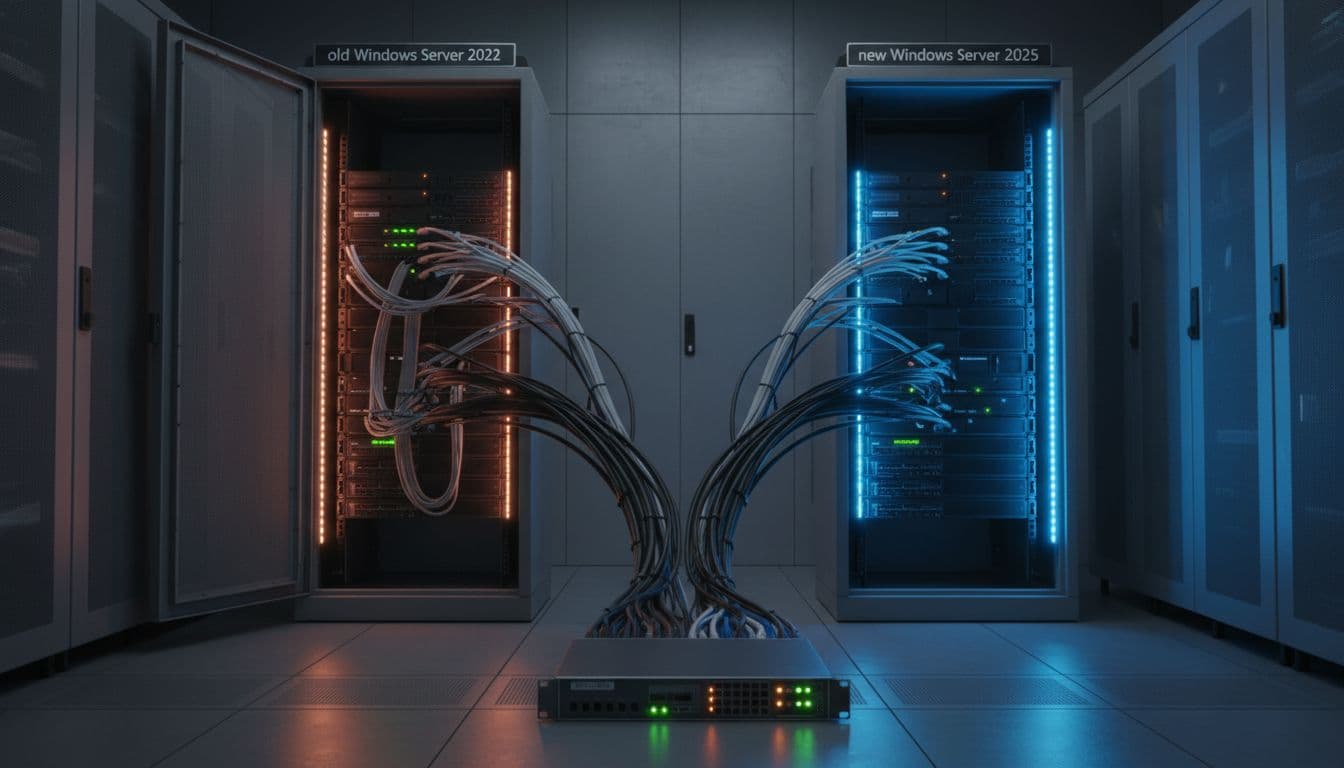
The goal is to make cutover a routing change, not a rebuild event. That’s why this phase is mostly about traffic steering and data synchronization.
IIS and API workloads: blue-green behind a load balancer
Stand up a “green” pool on Windows Server 2025 with the same app build, config, and secrets. Keep it dark (no public traffic), but run health checks and synthetic transactions.
Then cut over by pool weight or pool swap. If you can’t use a load balancer, use DNS with a short TTL, but expect slower convergence and more rollback pain.
File servers: DFS or robocopy with a final delta
For SMB shares, parallel build works best when you can pre-seed data, then do a short final sync and name cutover.
A common approach is robocopy pre-seeding plus a final delta:
- Pre-seed:
robocopy \FS2022Share \FS2025Share /MIR /COPY:DATSOU /R:1 /W:1 /MT:32 - Final delta during cutover: repeat the command, then flip the share path or DFS namespace target
Be careful with /MIR because it can delete. Test on a non-production share first, and log every run.
Active Directory: add 2025 DCs, replicate, then move roles
For AD, the low-downtime pattern is adding new Windows Server 2025 domain controllers, letting replication settle, then transferring FSMO roles and retiring 2022 DCs later.
Minimum cutover checks:
repadmin /replsummaryshows clean replicationdcdiag /e /test:sysvolcheck /test:advertisingpasses- FSMO move (when ready):
Move-ADDirectoryServerOperationMasterRole -Identity "DC2025-01" -OperationMasterRole 0,1,2,3,4
Cutover sequence (use it as your runbook spine)
- Put 2022 nodes in “drain” (stop new sessions, keep existing).
- Force a final data delta (files, app state, configs).
- Switch traffic (load balancer pool swap, VIP move, or DNS).
- Run smoke tests and synthetic transactions.
- Keep 2022 available but isolated for fast rollback.
For teams that still need an in-place reference in isolated testing, this Windows Server 2025 in-place upgrade guide can help standardize lab steps.
Phase 5: Validate with monitoring, then keep the rollback door open
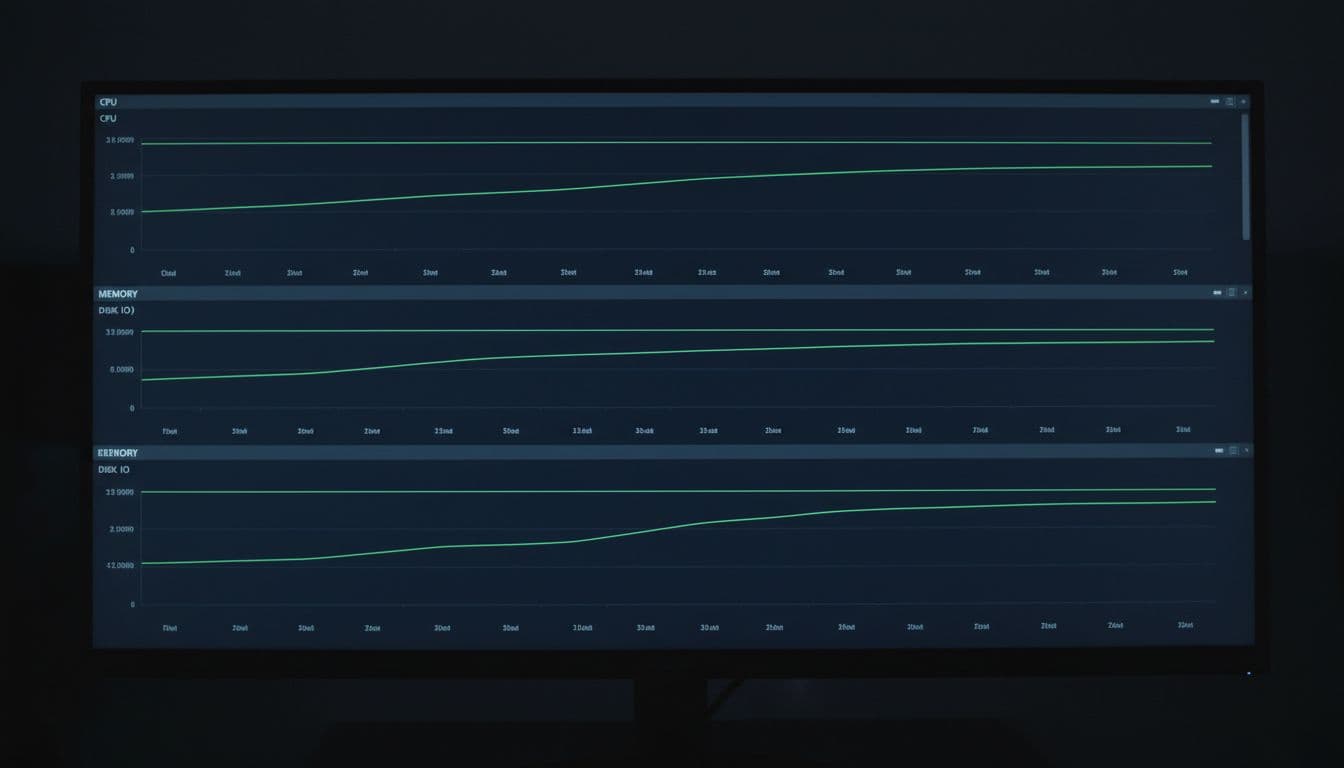
Validation is where “near-zero downtime” becomes real. You’re proving that users stayed up, and the platform stayed healthy.
Watch service-level signals first (login success rate, 5xx rates, SMB errors, queue depth), then system signals (CPU ready time on VMs, disk latency, memory pressure, dropped packets). Also confirm backups on the new nodes run and restore, not just “completed.”
Rollback triggers should be objective. If you can’t state them in numbers, you’ll hesitate under pressure.
Use triggers like: sustained error-rate increase, failed authentication spikes, replication errors that persist past a set window, or performance that breaches SLOs. If a trigger fires, revert routing immediately, then triage with users protected.
Phase 6: Decommission Windows Server 2022 without creating new risk
Don’t power off 2022 the day you cut over. Keep it in a ready-but-isolated state until you finish the validation window and complete at least one successful backup cycle on 2025.
Then remove 2022 cleanly: take it out of load balancer pools, remove stale DNS and SPNs, retire certificates if needed, and update CMDB and diagrams. Finally, confirm monitoring no longer expects the old hosts, and close the change with evidence (graphs, test results, and restore proof). If you want an extra reference for overall upgrade planning, this upgrade to Windows Server 2025 guide can help compare approaches across environments.
Conclusion
A Windows Server 2022 to 2025 Windows Server upgrade that avoids downtime is mostly a migration discipline problem, not an installer problem. Build 2025 in parallel, sync state carefully, cut traffic over with control, then validate like you expect issues. Keep rollback simple and fast, because that’s what protects uptime. The safest upgrade is the one where users never notice anything happened.

