Most mailbox compromises don’t start with ransomware. They start with a quiet change that makes email leak out, without breaking anything obvious.
A tight email account audit can catch that quiet change fast: hidden forwarding, sneaky inbox rules, unexpected delegates, and suspicious sign-ins. The goal isn’t a perfect investigation. It’s a 30-minute sweep that tells you whether an inbox is safe enough to trust right now.
If you find something, don’t rush to “clean it up” first. Capture evidence, then contain.
What attackers change inside a mailbox (the “silent siphon” patterns)
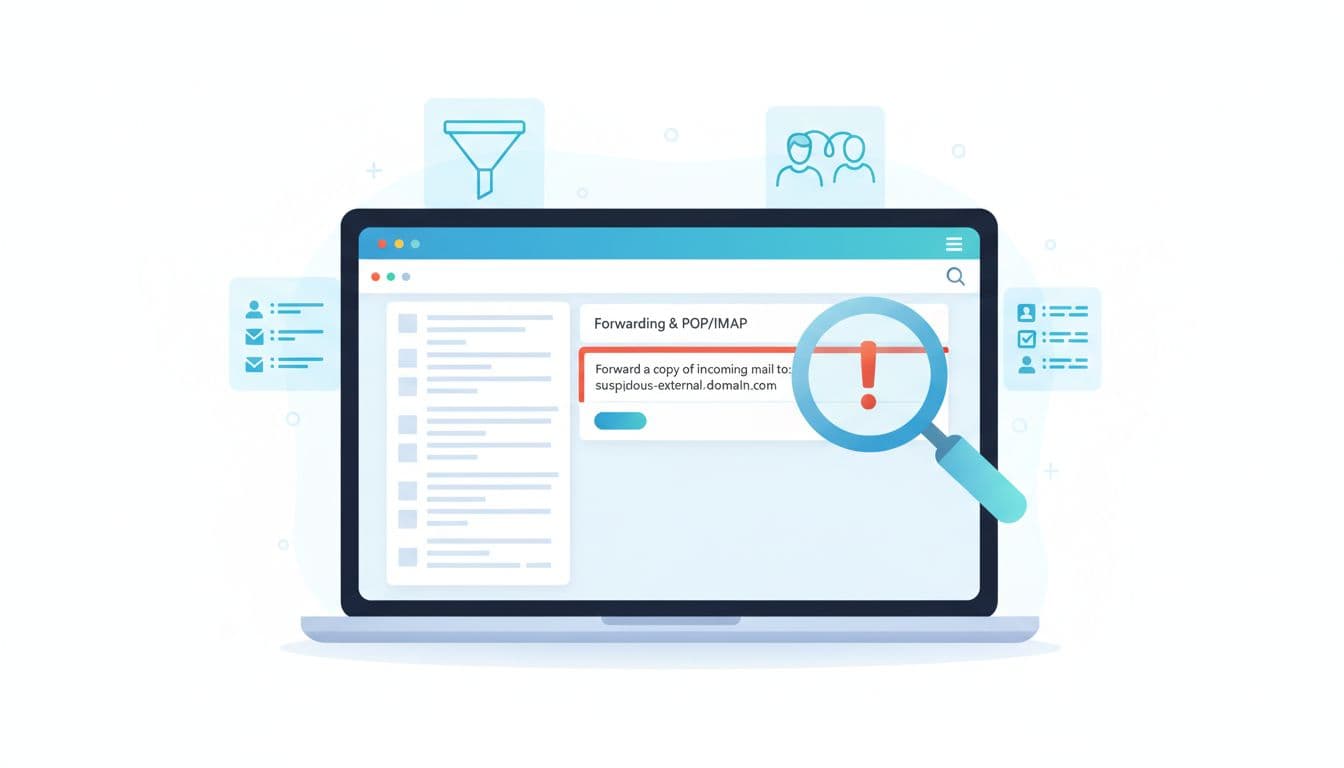
Attackers love mailboxes because email holds reset links, invoices, contracts, and internal threads. After a takeover, they often avoid noisy actions and instead change “plumbing” that keeps paying off.
Common patterns to look for:
- Auto-forwarding to an external address (often a free webmail domain, or a lookalike domain). This is why many teams restrict external forwarding at the tenant level; Microsoft documents the controls in its guidance on controlling external email forwarding.
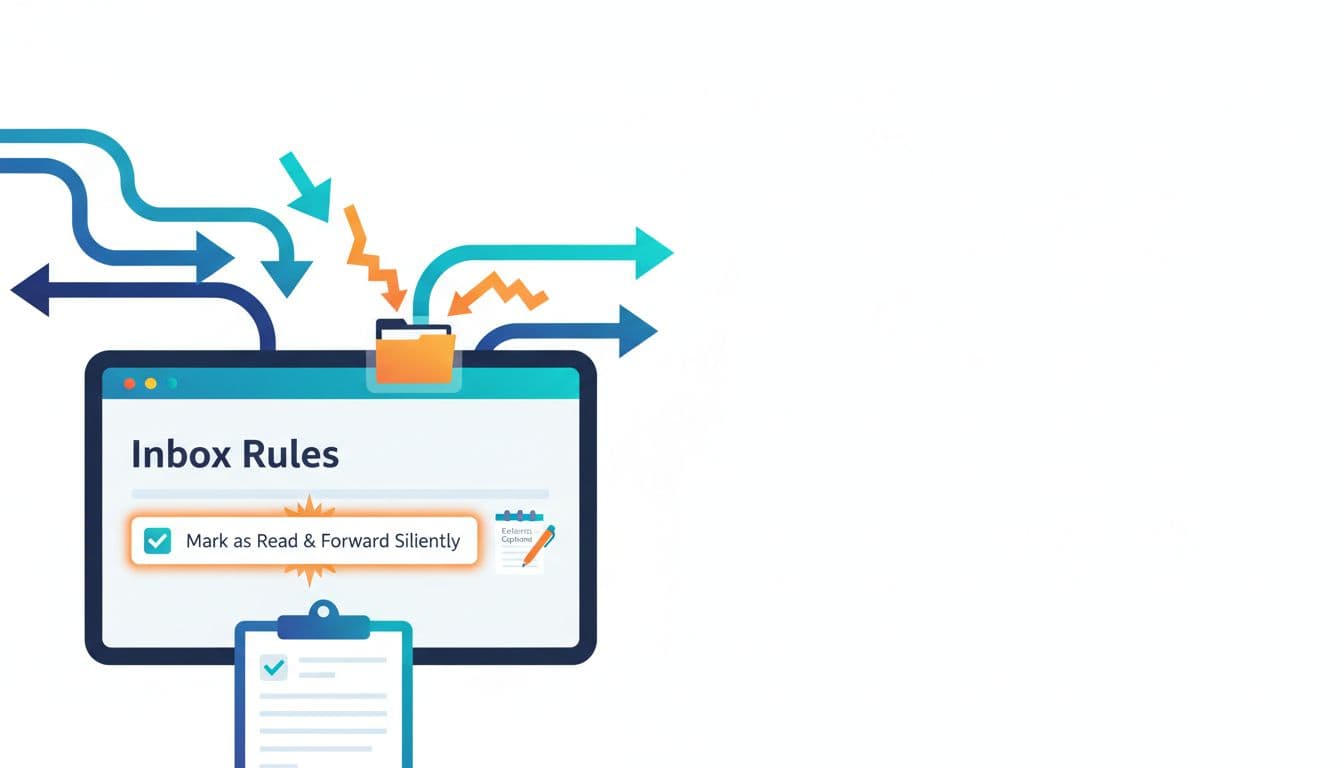
- Inbox rules/filters that hide security signals, like “mark as read,” “move to RSS,” “move to archive,” “delete,” or “skip inbox,” usually triggered by words like “invoice,” “payment,” “wire,” “ACH,” “DocuSign,” “password,” or messages from your CFO or finance system.
- Mailbox delegation and permissions changes, where a rogue delegate can read or send without needing the password every time.
- Connected apps (OAuth) and legacy access, where a third-party app keeps access even after a password reset, or IMAP app passwords keep working if allowed.
- Persistence through coverage, such as rules that only trigger on specific senders, only for mail with attachments, or only when the subject matches a pattern. That’s how an inbox can look “normal” during quick spot checks.
One warning: not every “weird” rule is malicious. CRMs, ticketing tools, and accounting workflows can use forwarding and auto-filing. Your job in this audit is to separate “documented and expected” from “new and unexplained.”
Minute-by-minute email account audit (Microsoft 365 and Google Workspace)
Use a timer. The constraint is the point.
| Time | Check | What you’re looking for |
|---|---|---|
| 0 to 10 | Forwarding + rules/filters | Exfil, hiding, auto-delete, mark-as-read |
| 10 to 20 | Delegates + connected apps | Rogue access paths that survive resets |
| 20 to 30 | Sign-in and audit logs | When it started, from where, and what changed |
Minutes 0 to 10: forwarding and rules (the highest payoff)
Microsoft 365 (user view): Outlook on the web (OWA) > Settings (gear) > Mail > Forwarding, then Mail > Rules (or Inbox rules).
Red flags: forwarding enabled to an external address, rules that “delete,” “move,” “mark as read,” or “redirect” based on finance terms or VIP names.
Microsoft 365 (admin view): Exchange admin center > Recipients > Mailboxes > select user > Mailbox > Email forwarding, then Mailbox delegation/permissions.
If you can’t quickly explain the forward target and business reason, treat it as suspect.
Google Workspace (user view): Gmail (web) > Settings > See all settings > Forwarding and POP/IMAP, then Filters and Blocked Addresses.
Red flags: forwarding to an unfamiliar address, filters that skip inbox, archive, or delete messages from specific senders.
Quick triage test: search the mailbox for a recent legitimate thread (invoice, quote, reset email) and confirm it still lands in Inbox and stays unread until the user opens it. If it’s getting auto-read or moved, you likely have rule abuse.
Minutes 10 to 20: delegates, mailbox permissions, and connected apps
Microsoft 365: Exchange admin center > Recipients > Mailboxes > select user > Mailbox delegation. Check Full Access, Send As, and Send on behalf.
Also verify the user doesn’t have unexpected “shared mailbox” style access granted to others.
Google Workspace: Gmail settings > Accounts and Import > Grant access to your account (delegation). Admins can also use Security tools to investigate delegate actions; Google describes this in its update on delegate activity visibility in the Security Investigation Tool.
Then check connected access paths:
- Microsoft 365: Entra admin center > Users > select user > Sign-in logs (for patterns), and review the user’s enterprise app access and consented apps (if your org allows self-consent, this matters).
- Google Workspace: Admin console > Security > Access and data control > API controls (review third-party app access), plus user-level Google Account security settings if applicable.
Treat “new app connected” close in time to a suspicious rule as a major signal. Password resets won’t always kick these out.
Minutes 20 to 30: sign-in activity and a fast audit log pull
You want two answers: where did the access come from, and what changed?
Microsoft 365: Use Microsoft Purview compliance portal > Audit to search for mailbox and rule events. Microsoft’s reference on audit log activities helps you confirm the event types you’re seeing.
Look for events tied to rule creation, forwarding changes, permission changes, and repeated sign-ins from unusual locations.
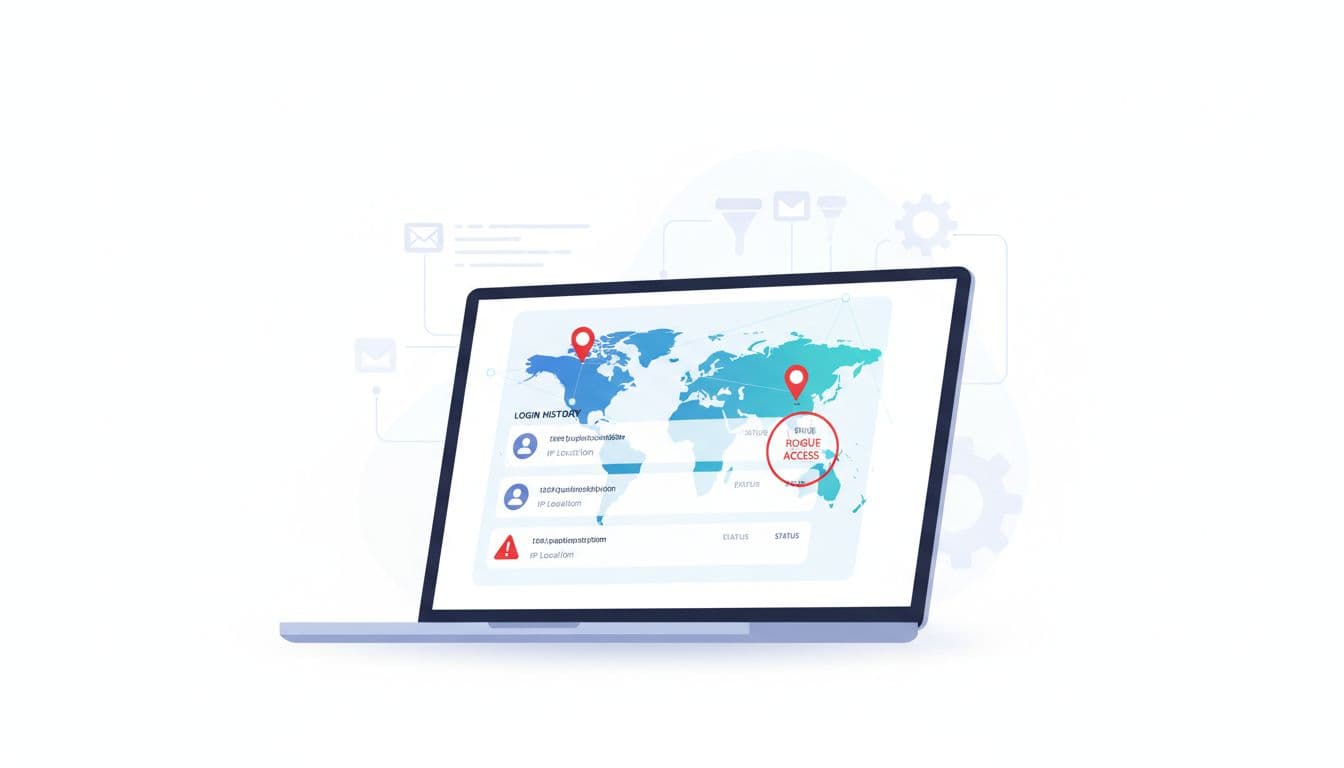
Google Workspace: Admin console > Reporting > Audit and investigation (or Audit) > Login log and Gmail log/search (names vary by edition). Look for new logins, suspicious user agents, and sudden geography jumps.
If you only have time for one correlation, do this: match the timestamp of “rule created” (or forwarding enabled) to the nearest sign-in event.
Evidence to capture before any cleanup
- Rule/filter details (name, conditions, actions), plus screenshots or exports where possible
- Forwarding addresses and any related settings (POP/IMAP, redirect, “keep copy”)
- Delegate list and mailbox permission grants
- Audit log entries (event type, actor, target, timestamp)
- Sign-in details (IP, country/city, user agent, session type)
Interpreting findings, avoiding false positives, and escalating safely
Some findings are suspicious on their face, like forwarding to a consumer mailbox. Others need context.
Common legitimate reasons you’ll see:
- A CEO forwards to an assistant (documented, internal address, known workflow).
- A shared mailbox uses rules to route tickets to folders.
- A scanner or line-of-business app sends mail that gets filed automatically.
What makes it risky is not “a rule exists.” It’s surprise plus capability: a new rule, created recently, that moves or forwards mail in ways the user didn’t request.
Lightweight escalation path (contain, then clean)
- Preserve evidence (screenshots, rule exports, audit results). Don’t delete first.
- Contain the account: reset password, revoke sessions, and force MFA re-checks (or re-register MFA if you suspect token theft).
- Remove persistence: delete malicious rules/filters, disable external forwarding, remove unknown delegates, and revoke suspicious OAuth grants.
- Scope impact: search for similar rules across other mailboxes (same forward-to address, same keywords, same rule names).
- Notify the right people: security lead, IT owner, and finance if invoices or payments were involved. If you’re an MSP, open an incident ticket with a clear timeline.
- Decide on broader actions: user comms, mailbox review, and any legal or insurer notifications based on your policies.
A final check that pays off: after changes, send a test message from an external address and confirm it lands in Inbox, stays unread, and doesn’t disappear.
Conclusion
A 30-minute email account audit is like checking your doors and windows after a break-in. You’re not remodeling the house, you’re finding the open entry points and closing them.
Run this audit any time a user reports missing emails, odd “read” status, or strange replies. The faster you catch forwarding rules, filters, and rogue access, the less time an attacker has to blend into daily work.

