If someone wanted to quietly steer your iPhone’s internet traffic, they wouldn’t need a flashy “hacker app.” A single configuration profile can do it, and it can look boring enough to ignore.
This quick, security-focused check is for everyday iOS 17 and iOS 18 users who installed a VPN, signed into work or school, tapped a “free Wi‑Fi” page, or tried a beta profile. You’ll learn how to spot what’s normal, what’s suspicious, and how to remove iPhone profiles without breaking legit workplace or school access.
What profiles, VPN configs, and MDM can change (and why it matters)
A configuration profile is like a rule sheet your iPhone agrees to follow. Some rule sheets are helpful, like a VPN you chose or an employer’s email setup. Others are risky, like a profile that installs a new root certificate, forces traffic through a proxy, or adds an unknown VPN configuration.
MDM (Mobile Device Management) is a bigger deal. If your iPhone is managed, an organization can enforce settings, install or remove managed apps, require passcodes, and sometimes restrict features. That can be correct for a company phone or a school-issued device. It’s not OK if it’s your personal iPhone and you never agreed to it.
Apple’s own safety guidance recommends reviewing profiles as part of personal security hygiene, see Apple’s steps to review and delete configuration profiles.
One reassuring note from recent reporting and enterprise chatter: as of February 2026, there hasn’t been a single widely documented, iOS 17 or iOS 18 specific wave of “rogue profiles” hitting everyone at once. The risk is more personal and situational, meaning it often comes from something you installed, tapped, or accepted.
The goal here isn’t panic. It’s verification. If a profile is legit, you’ll confirm it and move on. If it’s shady, you’ll remove it safely.
The 15-minute iPhone profile check (iOS 17 and iOS 18)
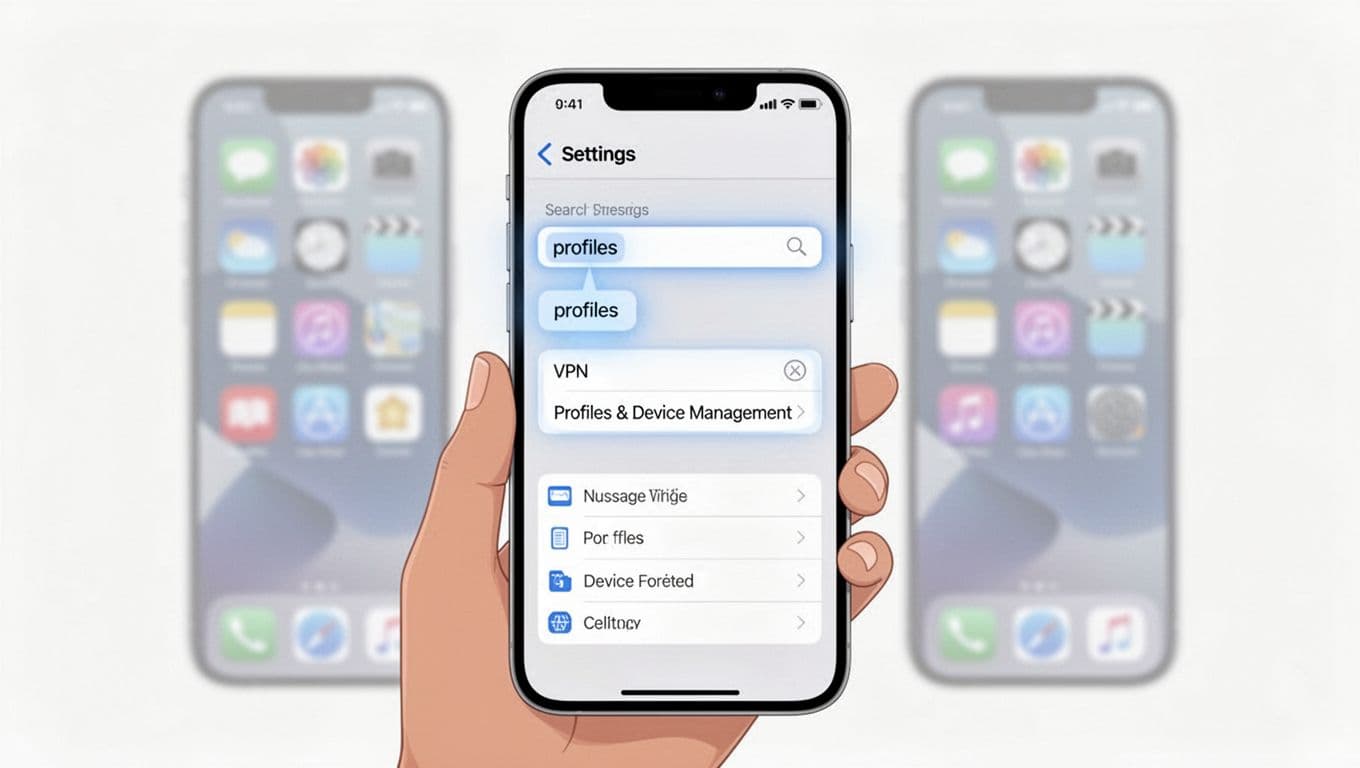
Set a timer for 15 minutes and do this in one pass. Don’t uninstall random apps yet. Start with what iOS trusts most: Settings.
Step 1: Find the profiles and management screen
Use either path:
- Direct path: Settings > General > VPN & Device Management
- Fast path: Open Settings, pull down to reveal Search, type VPN or Device Management or Profiles
If you don’t see “VPN & Device Management,” that’s often a good sign. Many iPhones have no profiles at all, especially personal devices that never joined work or school systems.
Step 2: Check VPN status and configurations
Look in two places:
- Settings > VPN (if present)
- Settings > General > VPN & Device Management > VPN
What you want to know: is there a VPN configuration you didn’t set up, or one that keeps turning itself back on?
Step 3: Review configuration profiles and certificates (high impact items)
In Settings > General > VPN & Device Management, check for:
- Configuration Profiles (sometimes shown as “Configuration Profiles” or similar)
- Device Management / MDM (wording varies)
Tap any entry and read the details. Pay attention to Organization, Description, and anything mentioning certificates, proxies, filtering, or “supervised” controls.
What’s normal vs suspicious (quick reference)
| Signal | Normal, usually OK | Suspicious, needs verification |
|---|---|---|
| Profile name | Matches your employer, school, carrier, or a known VPN | Generic like “Profile,” “Security,” “Wi‑Fi,” or “Unknown MDM” |
| Organization | A name you recognize and can confirm | Blank, odd spelling, or unrelated to your life |
| Install timing | You installed it during setup, onboarding, or VPN install | Installed after a random link, pop-up, or “free Wi‑Fi” sign-in |
| VPN provider | A provider you chose and pay for or trust | Unknown provider, multiple VPN configs, or always-on behavior |
| Certificates | None, or clearly tied to work/school with documentation | New root certificate you don’t recognize |
If anything looks off, don’t remove it yet. First, capture what you’re seeing.
Remove iPhone profiles safely, and confirm the fix
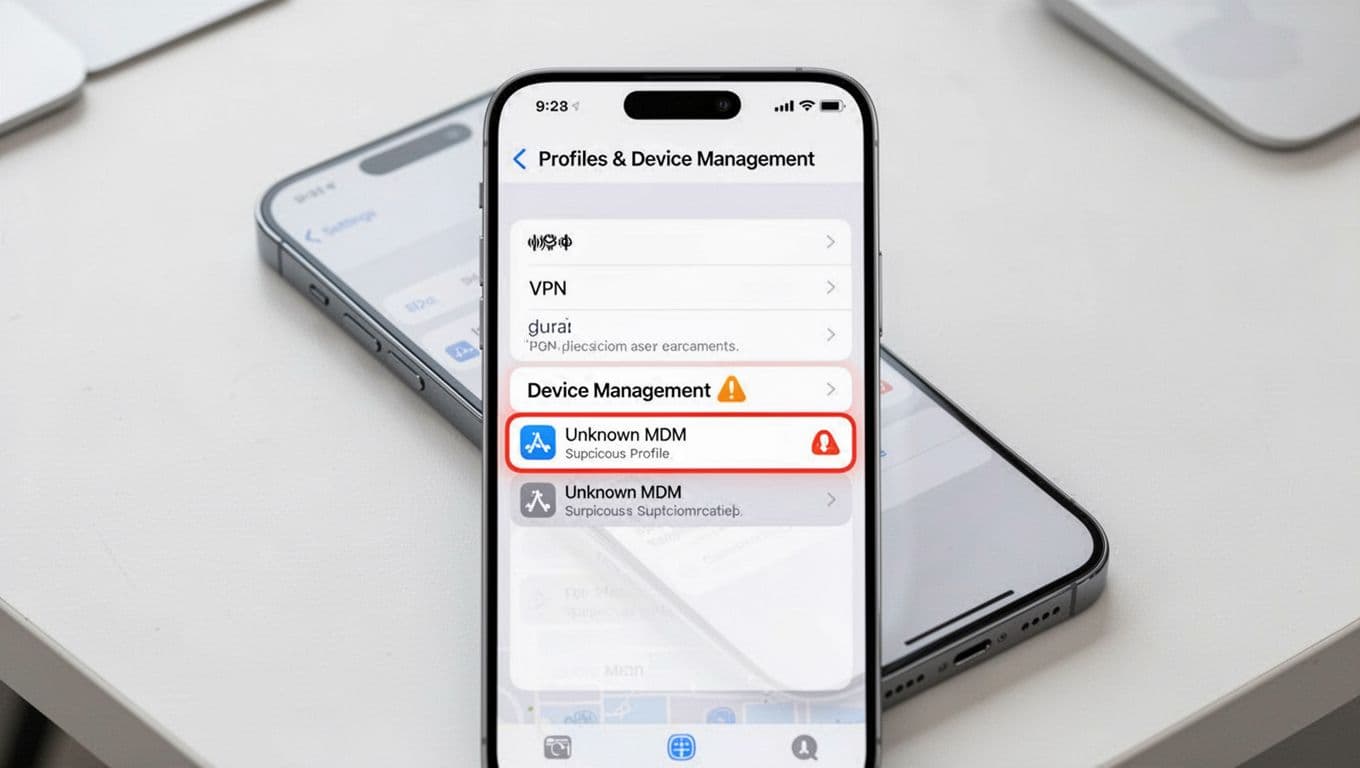
Before you remove anything (2-minute safety checklist)
This is the part people skip, and it’s the part that prevents “why did my email stop working?” surprises.
- Back up first: Use iCloud Backup (Settings > your name > iCloud > iCloud Backup) or a computer backup.
- Take screenshots: Profile details pages, VPN pages, and anything listing an organization name.
- Write down what might break: Work email, school Wi‑Fi, managed apps, a corporate VPN, or web filters for kids.
If the profile says it’s owned by your employer or school, don’t remove it without permission. If it’s on a company phone, removing it can violate policy. If it’s a personal phone enrolled for work access, IT may need to remove it from their side.
For Apple’s official steps on removal, see Apple’s guide to install or remove configuration profiles.
How to remove a suspicious profile, VPN, or MDM entry (iOS 17 and iOS 18)
Go to Settings > General > VPN & Device Management, then:
- Tap the profile you don’t trust.
- Tap Remove Profile (you may need to enter your iPhone passcode).
- If you see an MDM section, tap the management entry, then tap Remove Management (wording can vary).
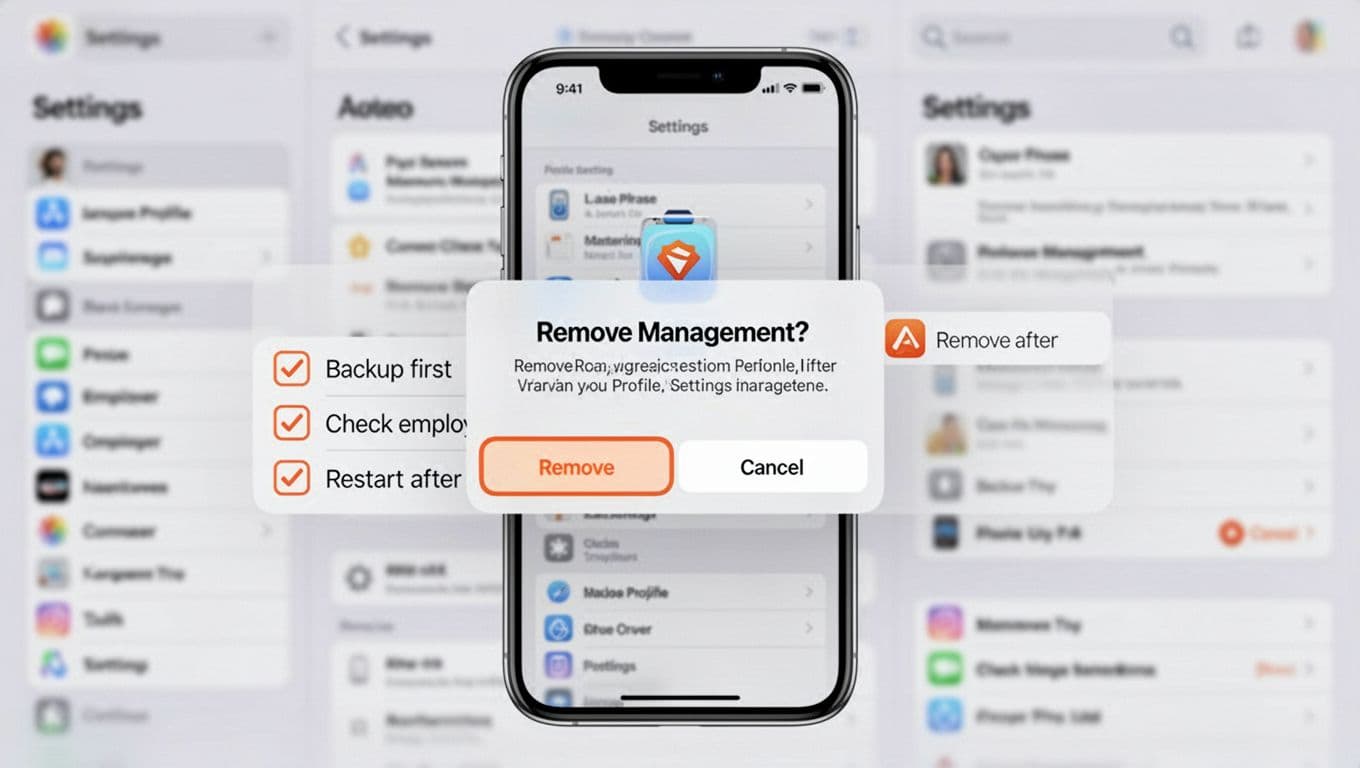
If you’re trying to remove a work or school management profile from a BYOD phone, IT often has cleaner options (like a selective wipe). A plain-English overview is in TechTarget’s guide to removing a management profile.
If your iPhone is stuck in “Remote Management” during setup after an erase, that’s different. In many cases, you can’t bypass it from Settings, and the device needs to be released by the owning organization.
After removal: quick sanity checks (and a safer baseline)
Do these right away so you know the change “stuck”:
- Restart your iPhone (power off, then back on).
- Re-check Settings > VPN and confirm no unknown VPN is enabled.
- Review installed apps: Settings > General > iPhone Storage, look for apps you don’t recognize, delete them.
- Check certificate trust: Settings > General > About > Certificate Trust Settings, disable trust for unknown root certificates (if present).
- Update iOS: Settings > General > Software Update.
- If you’re high-risk (stalkerware concerns, targeted threats, sensitive work), consider Lockdown Mode: Settings > Privacy & Security > Lockdown Mode.
If you still suspect compromise after removing profiles, use a broader recovery checklist like Bitdefender’s iPhone recovery steps, then consider a full erase and restore from a known-good backup.
Conclusion
A profile check is the iPhone equivalent of checking who has keys to your house. Most of the time, you’ll find nothing, or you’ll find something you recognize and can confirm. When you do need to remove iPhone profiles, the safest approach is slow and documented, take screenshots, back up, verify what it is, then remove it and re-check VPN and certificates. If an employer or school is involved, get permission first, it saves you hours and avoids policy trouble.

