A shared local admin password is like a master key copied a hundred times. Sooner or later, it ends up in the wrong pocket. Windows LAPS deployment fixes that by rotating a unique local admin password per device and backing it up where you control access.
Hybrid environments add one more twist: you may have on-prem AD, Microsoft Entra ID, and multiple management planes (GPO and Intune) touching the same settings. This checklist keeps the rollout predictable, auditable, and secure, using clear phases: Plan, Prepare, Pilot, Deploy, Operate.
Windows LAPS deployment, quick context for 2026
Windows LAPS is built into supported Windows versions, and it can back up passwords to on-premises Active Directory or Microsoft Entra ID (depending on device join and policy). Start with Microsoft’s official overview so everyone aligns on terms, storage, and access patterns: Windows LAPS overview.
As of March 2026, newer policy options (like additional automatic account management controls and passphrase settings) depend on newer clients (commonly Windows 11, version 24H2 or later). That matters if you plan to standardize settings across mixed fleets.
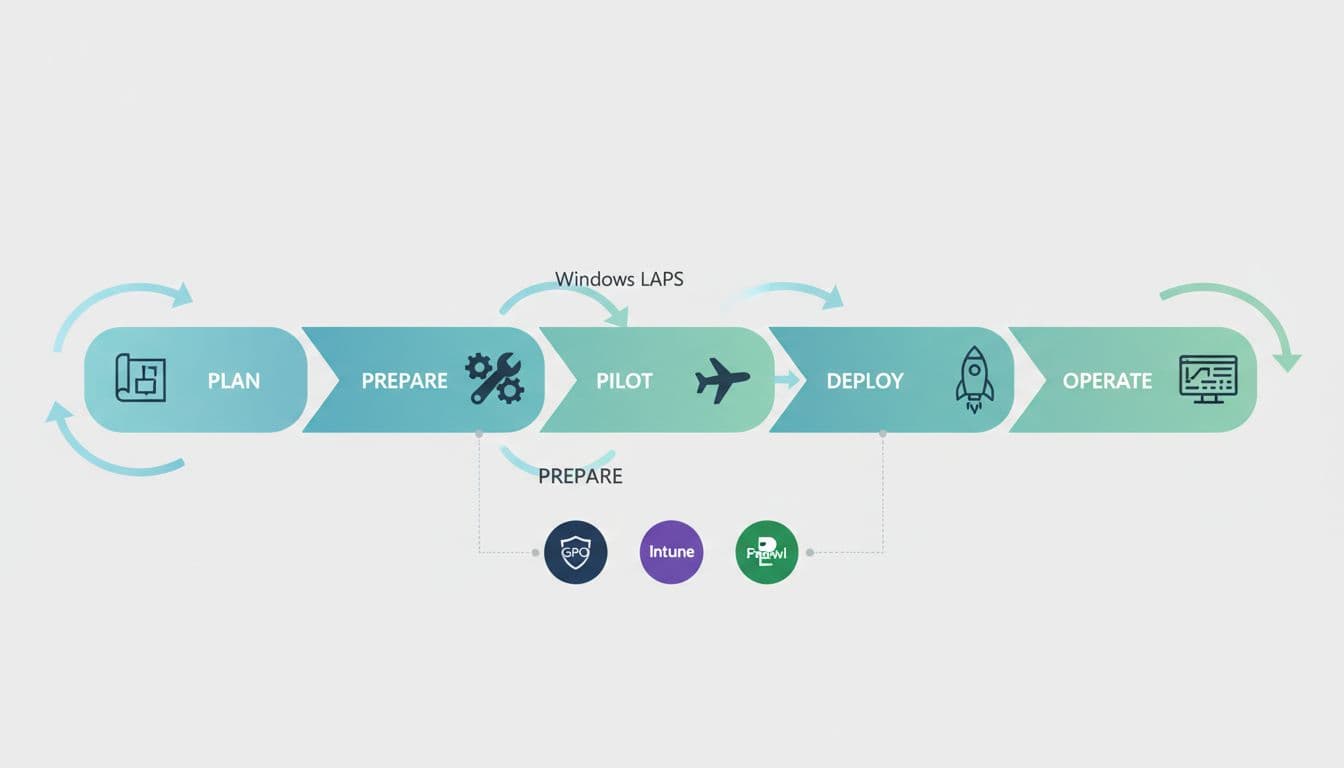
Use this table to assign ownership early, because most LAPS issues come from unclear boundaries (who sets policy, who can read passwords, and where audit trails live).
| Task | Primary owner | Where configured | Notes |
|---|---|---|---|
| Pick password backup target (AD vs Entra ID) | Identity + Security | AD / Entra | Don’t mix targets for the same device group without a plan. |
| Define managed local admin account | Endpoint Engineering | GPO / Intune | Decide built-in Administrator vs a dedicated local admin account. |
| Configure rotation, complexity, and post-use reset | Endpoint Engineering | GPO / Intune | Align with incident response expectations. |
| Delegate password read + reset rights | AD / Identity | AD | Scope to OUs and security groups, not broad admin roles. |
| Configure retrieval auditing | Security Engineering | AD / SIEM | Turn on auditing before wide rollout. |
| Build helpdesk runbook and approvals | IT Ops | Process + tooling | Treat LAPS retrieval like privileged access. |
| Pilot ring and rollback plan | Endpoint Engineering | AD OU / Intune groups | Include remote users, VPN users, and offline scenarios. |
Takeaway: treat Windows LAPS like a privileged access system, not a “set it and forget it” policy.
The 2026 phased checklist (Plan, Prepare, Pilot, Deploy, Operate)
Plan (decisions you can’t “patch later”)
- Choose where passwords will be backed up: on-prem AD, Entra ID, or split by device type.
- Decide who can read LAPS passwords and who can reset them (often different groups).
- Set your rotation goal (for example, 7 to 30 days) and define reset triggers after break-fix use.
- Document an emergency access path (break-glass), including approval and time limits.
- Pick one management plane per device group (GPO or Intune) to avoid conflicting settings.
For Entra-backed passwords and cloud access patterns, align your plan with Microsoft’s guidance on hybrid support and prerequisites: Get started with Windows LAPS and Microsoft Entra ID.
Gotcha: the fastest way to weaken LAPS is to grant broad read access “temporarily.” Temporary permissions tend to become permanent.
Prepare (prereqs, permissions, and policy shape)
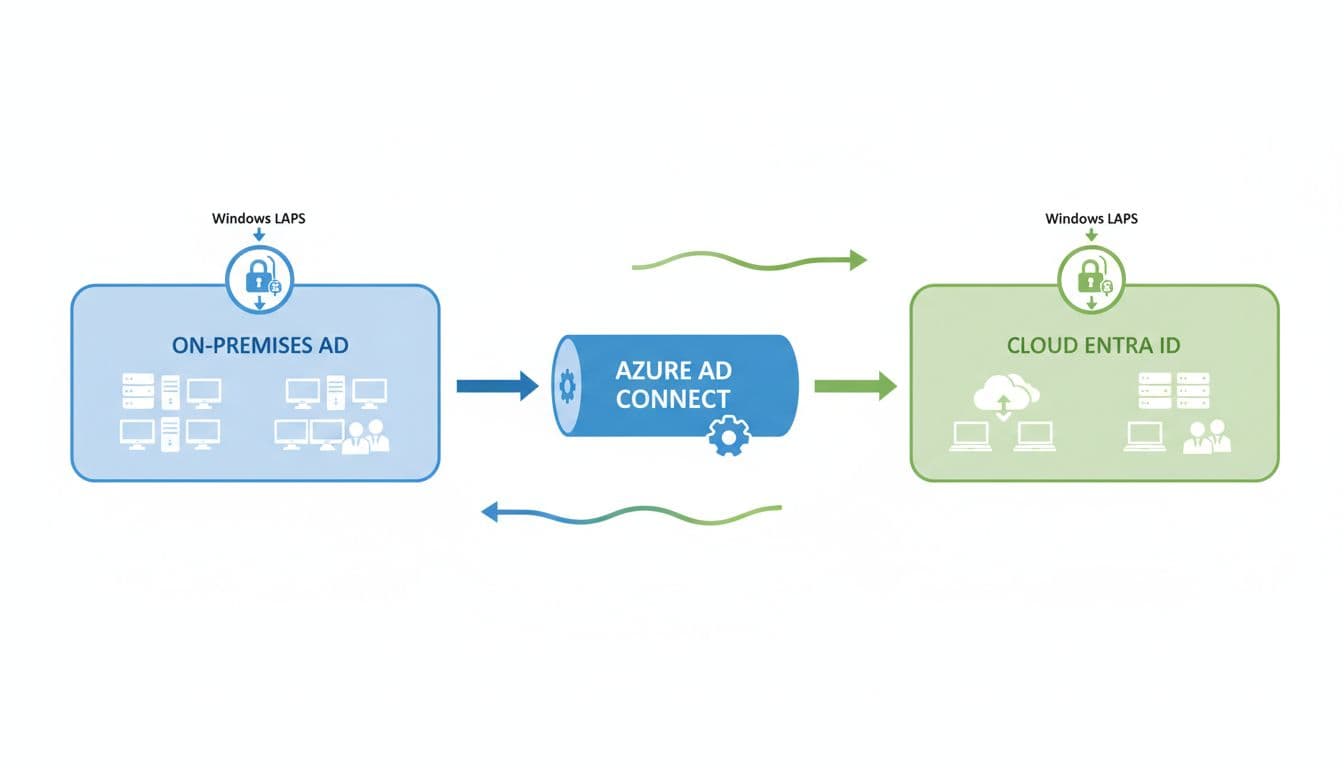
- Confirm OS support and patch baseline across pilot devices, especially if you need newer policy options.
- If using AD backup, verify your AD environment is ready (schema and permissions) before enabling clients.
- Create scoped security groups: LAPS-Password-Readers, LAPS-Password-Resetters, and a small LAPS-Auditors set.
- Decide your OU strategy (separate OUs for servers, kiosks, labs, and privileged workstations).
- If using Entra backup, confirm device join state and access model using Microsoft’s Entra guidance: Windows LAPS in Microsoft Entra ID.
Helpful spot checks you can standardize in your prep runbook (keep them in your internal docs, not in tickets):
- Permissions sanity check: use AD ACL reviews on pilot OUs, and confirm only intended groups can read LAPS attributes.
- Client log readiness: validate the Microsoft-Windows-LAPS/Operational log exists and forwards to your collector.
Pilot (prove rotation, retrieval, and support workflow)
- Deploy to a small, mixed pilot ring (IT devices, a few remote users, a few shared devices).
- Validate password rotation occurs on schedule, then force a rotation during the pilot window.
- Test retrieval from both perspectives: helpdesk workflow and security audit workflow.
- Run an access review after week one, then remove any “extra” readers you don’t need.
- Confirm your ticketing process never stores retrieved passwords in plain text.
For AD-backed retrieval tests, standardize on the supported cmdlet flow and avoid custom scripts that print secrets into logs. Microsoft’s reference helps you keep it clean: Get-LapsADPassword cmdlet reference.
Example one-liners to use during pilot validation:
- AD retrieval:
Get-LapsADPassword -Identity "PC-0142" -AsPlainText - Entra retrieval (if applicable):
Get-LapsAADPassword -DeviceIds <GUID>
Deploy (scale safely across GPO and Intune)
- Roll out by rings, not by org chart (IT, then low-risk users, then high-risk, then servers).
- Enforce “one source of truth” per device group (either GPO-managed or Intune-managed settings).
- If you manage with Intune, deploy Windows LAPS policy via endpoint security so settings stay consistent: Windows LAPS with Microsoft Intune.
- Tighten delegation as you expand, because the blast radius grows with every OU you add.
- Plan the legacy LAPS transition if you still have it, and avoid running overlapping policies on the same endpoints.
Operate (audit, monitor, and keep the process honest)
- Enable and review retrieval auditing, then route events to your SIEM with an alert for unusual reads.
- Require justification and ticket IDs for password access (process control, even if tooling is simple).
- Rotate immediately after use for sensitive endpoints (admins often forget this step under pressure).
- Review membership of reader/reset groups monthly, and after any helpdesk role change.
- Track coverage: percent of devices successfully backing up passwords, by OU and join type.
If you use AD auditing controls, keep to the supported tooling and document your settings. Microsoft’s cmdlet reference is the best starting point: Set-LapsADAuditing cmdlet reference.
Validation and security pitfalls in hybrid setups

Validation should be quick and repeatable. Run it after pilot, after each ring, and after every policy change.
Confirm rotation works
- On a target device, check the LAPS operational event log for recent password backup and rotation activity.
- From an admin workstation, retrieve the password (AD or Entra) and confirm the timestamp updates after rotation.
Confirm retrieval controls work
- Verify a non-authorized user cannot read the password.
- Verify resetters can trigger a rotation without gaining read access, when you’ve split duties.
Common pitfalls that break security outcomes:
- Over-delegation: granting password read to broad groups (Domain Admins is already powerful, but helpdesk usually doesn’t need that).
- Wrong storage choice: backing up to Entra for devices that can’t reliably meet the join and policy requirements, which leads to gaps.
- Secret sprawl: pasting passwords into tickets, chat, or documentation, which defeats rotation.
Treat every password retrieval like a privileged session: minimal access, strong audit, and fast reset after use.
Conclusion
A strong Windows LAPS deployment in 2026 is less about flipping a policy and more about tight ownership, scoped permissions, and proof through validation. Build the plan, prepare your identity controls, and pilot the support flow before you scale. Once it’s live, keep auditing and access reviews on a calendar, because drift is the real enemy.

