A user can pass MFA and still hand an attacker a valid token. That’s the trap behind Entra ID device code abuse.
The OAuth device authorization flow is legitimate. It helps devices and apps that can’t show a full browser sign-in. Still, attackers now use calls, chat messages, and fake urgency to get employees to complete that flow for them.
For defenders, the answer isn’t always “turn it off everywhere.” Some approved workflows still need it. Microsoft now uses the name Entra ID, but older logs, scripts, and docs may still say Azure AD, so keep both terms in mind while you hunt and harden.
What device code abuse looks like in Entra ID
The device code flow starts with a short code and a Microsoft sign-in page. In a normal case, a user enters that code to approve a TV, phone appliance, shared room device, or command-line tool. The code ties the user’s approval to the waiting device.
Attackers flip that around. They start the flow on their own system, collect the user code, then pressure a victim to enter it at the real Microsoft page. The lure may mention a missed voicemail, a Teams issue, a payroll file, or a payment task. Recent reporting on device code vishing campaigns targeting Entra accounts shows how that mix of phone pressure and a real Microsoft login can work.
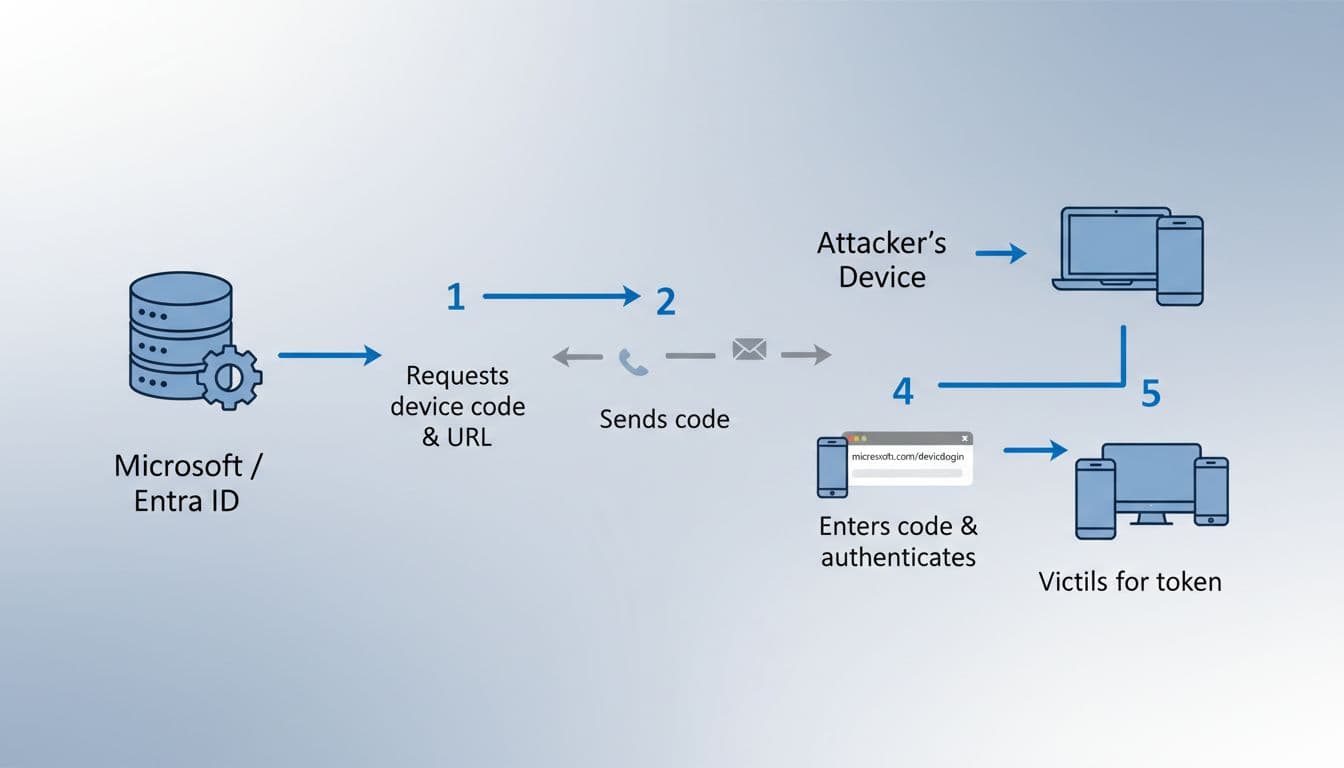
Once the victim signs in and completes MFA, the attacker gets tokens tied to that session. In many cases, the real prize is the refresh token, because it lets the attacker keep coming back for new access tokens. That’s why this method feels like a lock picked with the owner’s own key.
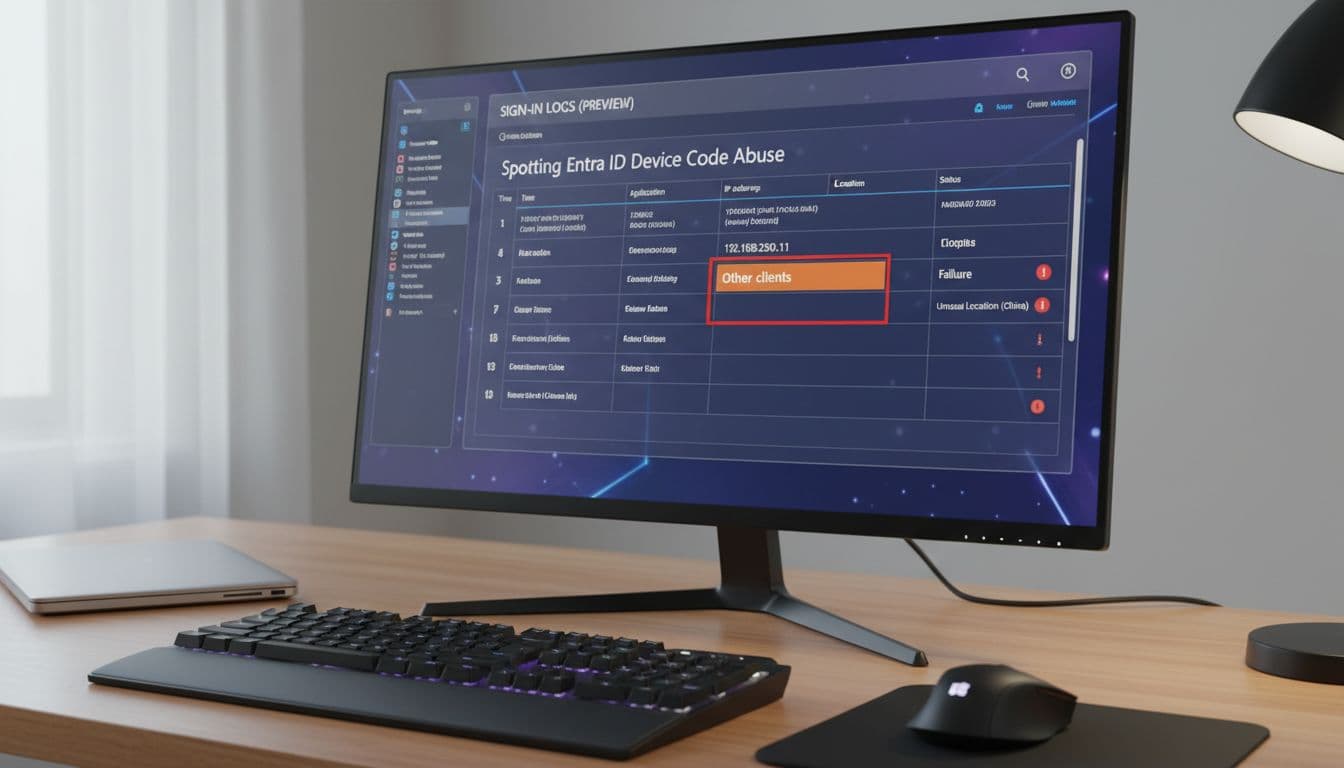
In sign-in logs, these events can hide in plain sight. You may see Client app used: Other clients, or the older field name ClientAppUsed = Other. If your team still exports “Azure AD” logs or hunts from older playbooks, update the logic so the naming change doesn’t create blind spots.
MFA success can be a warning sign here, not proof that the user is safe.
How to prevent Entra ID device code abuse without breaking the business
The best defense is a narrow, tested policy. Block what you don’t need, then carve out small exceptions for what you do.
- Find real device code usage first: Review sign-in logs for device code events or “Other clients.” Identify the user, app, location, and business owner. If no one can explain the use, treat it as unapproved.
- Block device code flow with Conditional Access: In tenants with the newer controls, target device code flow directly. In older policy views, use the broader “Other clients” or non-browser client categories. Roll it out in report-only mode first, then validate results with the What If tool.
- Create tight exception groups: If a Teams phone, shared room device, or admin tool still needs device code, place only those users or scenarios in a dedicated exception group. Don’t give a blanket bypass to all admins or all IT staff.
- Add stronger controls around sensitive access: Apply Conditional Access to Exchange Online, SharePoint Online, and admin portals. Authentication strengths and sign-in risk policies help reduce weak or odd sign-ins, although they won’t stop a user from approving an attacker-initiated device flow on Microsoft’s real page.
- Reduce token and OAuth blast radius: Review app governance, third-party consents, and over-broad permissions. If you use token protection where supported, keep it on as an added layer. It can reduce replay risk, but it doesn’t fix a device code session the user already approved.
This matters because OAuth abuse keeps changing shape. Microsoft’s March 2026 OAuth abuse research shows how attackers keep shifting to trusted flows and familiar prompts. That makes user training more important, not less. Tell staff and helpdesk teams one simple rule: never enter a device code from an unexpected call, text, or chat, even if the page is real Microsoft.
How to detect abuse and respond before tokens spread
Detection starts in Entra ID sign-in logs. Search for sessions where the client app shows Other clients, then compare IP, ASN, geo, and sign-in timing to the user’s normal pattern. Also look for sign-ins that quickly lead to mailbox access, Microsoft Graph calls, SharePoint file activity, or new inbox rules.
Use Entra risk signals as triage help, not as your only control. Unfamiliar sign-in properties, first-seen locations, and risky users can help you rank cases. However, device code abuse may still look “clean” because the victim used the real Microsoft sign-in page and passed MFA.
If a user reports, “I entered a code after a call,” treat it like token theft right away.
Incident response checklist
- Contain the account: Block sign-in or disable the user if the session is still active.
- Revoke sessions: Revoke refresh tokens and sign-in sessions, then force re-authentication.
- Scope the access: Review Exchange, SharePoint, OneDrive, Teams, and Graph activity for the same time window.
- Check for follow-on actions: Hunt for inbox rules, file downloads, consent changes, and new app activity.
- Expand the hunt: Pivot on the client ID, source IP, lure theme, and other users contacted by the same caller or message.
Hardening checklist
- Block device code flow by default unless there is a named business owner.
- Keep exceptions small and review them on a schedule.
- Use report-only and What If before pushing Conditional Access changes live.
- Watch sign-in logs for “Other clients” and alert on unusual geo or first-seen patterns.
- Train users and helpdesk staff to reject unsolicited device codes, even on real Microsoft pages.
The bottom line is simple: device code abuse turns a trusted Microsoft login into an attacker session. Speed matters, because a valid refresh token can outlast the social trick that created it. Block unused flows, fence in approved use, and hunt “Other clients” aggressively. That’s how you stop a small code from becoming a big breach.

