One missed SSO exception can undo years of careful admin work. A Salesforce security audit in 2026 is less about passing a review and more about closing quiet paths to data loss.
Spring ’26 raised the bar with device activation for weaker SSO flows, connected app changes, file malware scanning, and better Trust Center alerts. If your org spans multiple business units, partner portals, and custom apps, the audit has to be sharp.
Start with identity, because most serious gaps still begin there.
Identity and access controls that fail audits first
Map every login path before you review object access. Salesforce now requires device activation for weaker SSO logins, first for OIDC and then for SAML in Spring ’26. If any route bypasses MFA, or still leans on retired SAML settings like Triple DES, move it to the top of the queue.
Also review session timeout, login hours, trusted IP ranges, API-only users, and high-assurance session rules. The Spring ’26 admin changes are a good reminder that one release can turn an old exception into a live risk.

Next, test entitlement drift. Large orgs collect permission sets the way old buildings collect spare keys. A user who changed roles twice may still keep export rights, Modify All Data, or access to objects their team no longer owns.
Compare profile intent against real assignments, especially permission set groups and muted permissions. Salesforce’s guide to profiles and permissions is useful when the model looks clean on paper but messy in production. Don’t skip delegated admins, break-glass accounts, or Experience Cloud guest users.
If one login path avoids MFA, treat it like an incident, not a low-priority task.
During this pass, verify four things:
- Dormant users are deactivated, not merely frozen.
- Temporary access has a clear end date.
- Guest users can’t read objects, files, or Apex endpoints they don’t need.
- Support staff can’t grant themselves broader access without review.
If nobody can explain why access exists, remove it, test the impact, and document the decision.
Data protection, sharing rules, and integration review
Once access is tighter, inspect how data moves. Start with Organization-Wide Defaults set to Private unless a real business case says otherwise. Then review sharing rules, public groups, queues, territories, manual shares, and report folder access. Most enterprise leaks come from old sharing logic, not one dramatic admin mistake.
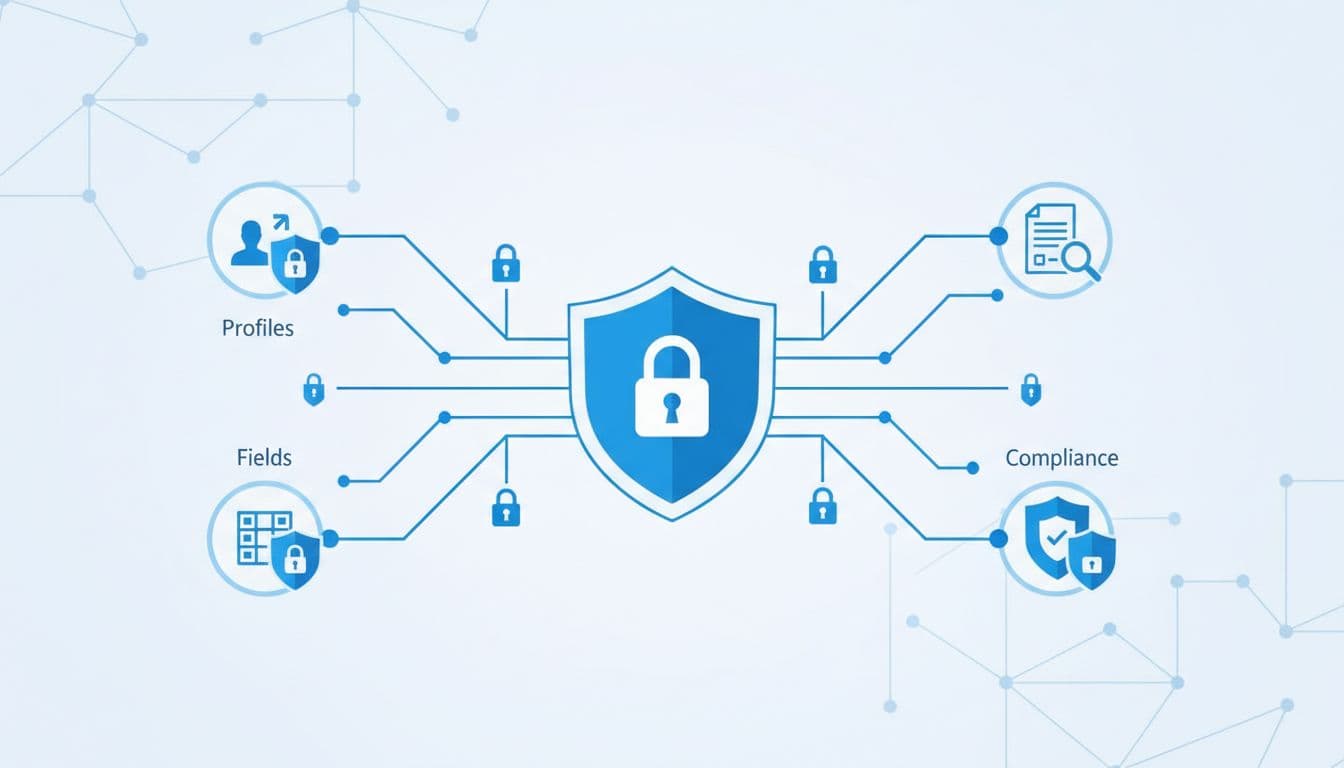
For regulated data, compare field classification with actual use. If you license Shield, check Platform Encryption coverage, key rotation, Event Monitoring, and Field Audit Trail retention. This Shield feature breakdown helps when teams assume encryption or monitoring was turned on years ago. Also check Salesforce Files, because Spring ’26 file malware scanning can reduce risk from uploaded contracts, claims, and attachments.
Integrations need the same pressure. New connected apps now default to disabled until admins approve them, and many new use cases fit better in External Client Apps. Audit OAuth scopes, refresh token policies, named credentials, service accounts, and API users with broad object rights. For a second pass, compare your findings with AppOmni’s Salesforce assessment checklist.
Then review custom code and AI features. Flag Apex that skips CRUD and field-level checks, dynamic SOQL built from user input, Experience Cloud endpoints that expose IDs, and Agentforce prompts that can echo sensitive data. If your team ships managed packages or partner-facing extensions, hold that code to the same bar used in Salesforce security review.
Mark these as red flags during the audit:
- Public report folders with export-heavy groups
- API users tied to human admins
- Sandboxes holding live data without masking
- Old refresh tokens with no clear owner
Monitoring, evidence, and a fix plan that sticks
Logs turn a good hunch into proof. Pull Event Monitoring data for admin actions, report exports, API spikes, failed logins, and odd after-hours access. Pair that with My Trust Center alerts for MFA status, SAML issues, and cert expiry so your evidence lives in one place, not six screenshots.
Triage findings by effort
Use this triage table when the audit uncovers more work than one sprint can absorb.
| Fix tier | Typical findings | First move |
|---|---|---|
| Quick wins | Dormant users, guest access, weak token policies | Disable, revoke, and re-test |
| Medium effort | Sharing cleanup, SSO hardening, sandbox masking | Assign owners and stage changes in sandbox |
| Long-term governance | Access recertification, data classification, code review gates | Add policy, cadence, and evidence requirements |
Quick wins cut exposure fast. Long-term work stops the same issue from coming back.
Most teams slip after the scan, not during it. Tie every finding to an owner, due date, and proof of retesting. Add quarterly access reviews, expiring elevated access, sandbox data masking, and change-control checks for new integrations. If you want a broader operating model, this zero-trust checklist for Salesforce is a solid frame.
Keep one record of accepted risks. An exception without an owner becomes a permanent backdoor.
One overlooked login exception can still open the whole org. The best Salesforce security audit is repeatable, tied to releases, and strict about stale access, open sharing, and broad OAuth tokens.
If your last full review happened before Spring ’26, run it again now. Track the fixes, not only the findings.
Set a 30-day window for high-risk gaps, then re-test every fix before the next release cycle.

